# TAO.com Support Center

## Status

{% hint style="success" %}
**Status:** All systems operational. For more details, see [TAO.com Status](/support/tao.com-status).

Having trouble? Start with [Frequently Asked Questions (FAQs)](/support/frequently-asked-questions-faqs).
{% endhint %}

### Popular Pages

<table data-view="cards"><thead><tr><th></th><th></th><th></th><th data-hidden data-card-cover data-type="files"></th><th data-hidden></th><th data-hidden data-card-target data-type="content-ref"></th></tr></thead><tbody><tr><td><h4><i class="fa-comment-question">:comment-question:</i></h4></td><td><strong>FAQs</strong></td><td>Answers to the questions we get the most</td><td></td><td></td><td><a href="/pages/O0bmRYWOSrgT3pTnEWao">/pages/O0bmRYWOSrgT3pTnEWao</a></td></tr><tr><td><h4><i class="fa-screwdriver-wrench">:screwdriver-wrench:</i></h4></td><td><strong>Troubleshooting &#x26; Help</strong></td><td>Guides to common issues</td><td></td><td></td><td><a href="/pages/X8y39IqIXVFBVN55Rqma">/pages/X8y39IqIXVFBVN55Rqma</a></td></tr><tr><td><h4><i class="fa-hand-wave">:hand-wave:</i></h4></td><td><strong>Getting Started</strong></td><td>Onboarding guides and product documentation</td><td></td><td></td><td><a href="/pages/WkIlwkbpyL5ddW1RPVKI">/pages/WkIlwkbpyL5ddW1RPVKI</a></td></tr></tbody></table>


# TAO.com Status

## TAO.com

{% hint style="success" %}
**Status:** All systems operational. For more details, see [TAO.com Status](/support/tao.com-status).

Having trouble? Start with [Frequently Asked Questions (FAQs)](/support/frequently-asked-questions-faqs).
{% endhint %}

<table><thead><tr><th width="317.84375">Product</th><th width="191.27734375">Status</th><th>Notes</th></tr></thead><tbody><tr><td><a href="https://apps.apple.com/us/app/tao-com-bittensor-wallet/id6476235156">TAO.com iOS mobile app</a></td><td>✅ Operational</td><td></td></tr><tr><td><a href="https://play.google.com/store/apps/details?id=com.tensora.tao">TAO.com Android mobile app</a></td><td>✅ Operational</td><td></td></tr><tr><td><a href="https://chromewebstore.google.com/detail/taocom-bittensor-wallet/bdgmdoedahdcjmpmifafdhnffjinddgc?hl=en-US&#x26;utm_source=ext_sidebar">TAO.com Chrome extension</a></td><td>✅ Operational</td><td></td></tr><tr><td>TAO.com backend</td><td>✅ Operational</td><td>Powers the mobile app and Chrome extension</td></tr><tr><td><a href="https://www.tao.com/">TAO.com website</a></td><td>✅ Operational</td><td></td></tr></tbody></table>

## Status Log

No open issues.

For full history, see [Status History](/support/tao.com-status/status-history).

## Third-Party Services

These are third-party services that we rely on to provide the TAO.com experience. Please reference their status pages for details on any interruptions to related features above not yet noticed by our team.

<table><thead><tr><th width="150.49609375">Third Party</th><th width="143.37109375">Service</th><th width="216.6875">How we use it</th><th>Where to find status</th></tr></thead><tbody><tr><td>Bittensor</td><td>Bittensor blockchain</td><td>Fetch wallet balances, holdings data, subnet data, staking / unstaking, buying / selling subnet tokens, transfers, and more.</td><td><a href="https://discord.com/channels/799672011265015819/830075335084474390">Official Discord - Announcements Channel</a></td></tr><tr><td>Coinbase</td><td>Coinbase Onramp</td><td>To provide users with the ability to buy TAO.</td><td><a href="https://status.coinbase.com/">Coinbase Status</a></td></tr><tr><td>Coinbase</td><td>Coinbase - API</td><td>To provide real-time USD-to-TAO prices.</td><td><a href="https://status.coinbase.com/">Coinbase Status</a></td></tr><tr><td>CoinMarketCap</td><td>CoinMarketCap API</td><td>To provide historical USD-to-TAO prices.</td><td><a href="https://status.coinmarketcap.com/">CoinMarketCap Status</a></td></tr></tbody></table>


# Status History

#### <mark style="color:$success;">**Resolved:**</mark> **Balance graph showing inaccurate dip in balance**

**Tue, May 5th, 2026**

* We are aware of a historical data issue resulting in the balance graph on the wallet tab in the TAO.com iOS app showing an inaccurate dip in balance. Your funds are safe - this is an issue with how historical balances over time are currently being shown. We have identified the issue and are working to restore older historical data. We will update here once resolved.
* **Update**: this issue has been resolved; historical balances are now displaying correctly.

#### <mark style="color:$success;">**Resolved:**</mark> **Some transaction history values showing in TAO even when display is set to USD**

**Tue, Mar 24th, 2026**

* We are aware of a minor bug resulting in transaction history amounts sometimes showing in TAO even if the user's currency preference is set to display in USD. We expect to fix this in our next release expected next week and will update here once resolved.

#### <mark style="color:$success;">**Resolved:**</mark> **Graphs showing inaccurate data for last \~12 hours**

**Fri, Apr 24th, 2026**

* We are aware of a historical data issue resulting in the balance graph on the wallet tab in the TAO.com iOS app showing an inaccurate balance history. Your funds are safe - this is an issue with how historical data over time are currently being shown. We are actively investigating and will update here once this is resolved.

#### <mark style="color:$success;">**Resolved:**</mark> **Graphs showing inaccurate data for last \~12 hours**

**Tue, Mar 31st, 2026**

* We are aware of a historical data issue resulting in the balance graph on the wallet tab in the TAO.com iOS app showing an inaccurate dip in balance and the TAO->USD graph on the TAO Price page not updating correctly. Your funds are safe - this is an issue with how historical data over time are currently being shown. We are actively investigating and will update here once this is resolved.
* **Update Wed, Apr 1st:** this is mostly resolved at this point with nearly all historical data now displaying correctly in the app. There still may be some users who see data that is a few minutes out of date, but in most cases this won't be noticeable or affect your experience. We will provide another update here once fully resolved.
* **Update Fri, Apr 3rd:** this is now fully resolved with the exception of some historical data between 8pm and 11:30pm EDT on March 31st that should be barely recognizable for most users.

#### <mark style="color:$success;">**Resolved:**</mark> **Subnet content not displaying correctly; some functionality inoperable**

**Mon, Mar 30th, 2026**

* We are aware of an issue with our Content Management System resulting in subnet content not displaying correctly in the TAO.com app and some functionality being currently inoperable. We are actively investigating and will update this message once resolved.
* **Update:** Issues have been resolved and the app is back to functioning normally.

#### <mark style="color:$success;">**Resolved:**</mark> **Balance graph showing inaccurate dip in balance**

**Fri, Mar 27th, 2026**

* We are aware of a historical data issue resulting in the balance graph on the wallet tab in the TAO.com iOS app showing an inaccurate dip in balance. Your funds are safe - this is an issue with how historical balances over time are currently being shown. We are actively investigating and will update here once this is resolved.
* **Update:** we have identified the issue and a fix is under way, working to restore older historical data. We expect this to be fully resolved by \~7:30pm EDT tonight (Fri, Mar 27th).
* **Update:** this has been resolved. Graphs and historical data are now displaying correctly.

#### <mark style="color:$success;">**Resolved:**</mark> **Known issues affecting the ability to load the TAO.com iOS app**

**Wed, Mar 25th, 2026**

* We are aware of an issue causing the TAO.com iOS app to not be able to load. We are actively investigating and will post and update here once resolved.&#x20;
* **Update:** this issue has been resolved and the app is back to loading normally.

#### <mark style="color:$success;">**Resolved:**</mark> **Babelbit (Subnet 59) balances not displaying correctly**

**Tue, Mar 24th, 2026**

* We are aware of an issue on the Bittensor chain that is resulting in users seeing incorrect balances for Babelbit (Subnet 59) tokens that they have staked via the TAO.com validator. Your funds are safe and the stake is not lost. We are working with the Opentensor Foundation (OTF) to identify the root cause of this display issue and an ETA for a fix that will result in the tokens returning to displaying correctly. We will update here with additional details as available.&#x20;
* [**Update:** ](#user-content-fn-1)[^1]This issue has been resolved and Babelbit balances are now displaying correctly.

#### <mark style="color:$success;">**Resolved:**</mark> **TAO purchases via Coinbase integration not transferring to wallet in TAO.com app**

**Sun, Mar 22nd, 2026**

* We have received reports and confirmed ourselves that TAO purchases in the TAO.com iOS app via the Coinbase integration seem to be stuck in a "pending" state and are not reaching users' Bittensor wallets in their TAO.com app.
* We are investigating further. We do not believe that this is an issue with the app per se, but rather between Coinbase and the Bittensor chain that is resulting in transactions/transfers being delayed in being submitted and/or processed properly to the chain.
* However, we do not see any announced issues by Coinbase or Bittensor at this time. We will continue monitoring.
* We will update here once resolved.
*
* Update: this has been confirmed to be a Coinbase issue per their post on <https://status.coinbase.com/>:&#x20;
*

```
<figure><img src="/files/FwfXy4aBCRgQ6vW9XNnS" alt=""><figcaption></figcaption></figure>
```

* Users who were not seeing their purchases transferred into their wallet on the TAO.com app should recheck their wallet to confirm their purchase has now gone through.

#### <mark style="color:$success;">**Resolved:**</mark> **Staking rewards lower than expected**

**Fri, Mar 20th, 2026**

* We are aware of an issue with the Bittensor chain that is resulting in lower rewards for users staking through certain validators, including the TAO.com validator.
* We are in active discussions with the Opentensor Foundation (OTF) to address this issue and will post here once resolved.
* [**Update:** ](#user-content-fn-1)[^1]This issue has been resolved. Staking rewards have returned to normal as of block 7818047 (Tue, Mar 24, 2026 8:50:00 pm UTC).

#### <mark style="color:$success;">**Resolved:**</mark> **Subnet content not displaying correctly; some functionality inoperable**

**Fri, Mar 20th, 2026**

* We are aware of an issue with our Content Management System resulting in subnet content not displaying correctly in the TAO.com app and some functionality being currently inoperable. We are actively investigating and will update this message once resolved.
* **Update:** Issues have been resolved and the app is back to functioning normally.

#### <mark style="color:$success;">**Resolved:**</mark> **Subnet buys/sells failing during chain upgrade**

**Thu, Mar 19th, 2026**

* Subnet buys/sells in the TAO.com app are failing while the Bittensor chain is upgraded. For more information, see the official [Bittensor Discord](https://discord.gg/qasY3HA9F9) #announcements channel.

#### <mark style="color:$success;">**Resolved:**</mark> **Staking rewards not always displaying**

**Wed, Mar 18th, 2026**

* We are aware of a number of users in the last week or so reporting that they are not seeing staking rewards on their TAO or subnet tokens in the TAO.com app.
* When we've investigated individual cases, we are finding that the rewards *are* being distributed by the chain to the wallet, but sometimes the TAO.com app is not showing each and every reward received. This likely is due to a temporary issue with the fidelity of our historical data records to show every single reward provided by the chain.
* We are investigating the root cause and will update here once resolved. In the meantime, you may cross-reference your rewards from the chain directly if you know how, or reach out to us per [Other Issues](/support/troubleshooting-and-help/other-issues) for us to help you confirm.
* **Update:** this has been resolved. Staking rewards have been distributed to users who still have stake in a batch in or around March 25th.

#### <mark style="color:$success;">**Resolved:**</mark> **Historical data slow to load**

**Sun, Mar 15th, 2026**

* We are aware of historical data (charts, transaction history, etc) being slow to load in the TAO.com iOS app. We have identified the root cause and are actively addressing.
* **Update:** app is back to operating normally. We continue to closely monitor due to increased traffic.

#### <mark style="color:$success;">**Resolved:**</mark> **iOS app slow to load; subnet data not loading**

**Fri, Mar 6th, 2026**

* We are aware of the TAO.com iOS app being slow to load (15+ seconds or more) and subnet data not loading. We are actively investigating and will update this message once resolved.&#x20;
* **Update:** app is back to operating normally - no longer slow to load and subnet data back to loading.&#x20;

#### <mark style="color:$success;">**Resolved:**</mark> **Bittensor Wallet Chrome extension not loading**

**Thu, Feb 19th, 2026**

* We are aware of an issue causing the Bittensor Wallet Chrome extension to not load. We are actively investigating and will update here once resolved. Your funds are safe.
* **Update:** the issues with the Bittensor Wallet Chrome extension not loading have been resolved.

#### <mark style="color:$success;">**Resolved:**</mark> **Subnet sales in Transaction History showing incorrect denomination**

**Tue, Feb 10th, 2026**

* We are aware of an issue in the Transaction History where subnet sale transactions are inaccurately displaying the TAO value of the sale labeled as "tokens". This will be fixed in v2.0.17 next week and we'll update this message once released.
* **Update:** this has been resolved in v2.0.17

#### <mark style="color:$success;">**Resolved:**</mark> **App not loading for some users**

**Mon, Feb 9th, 2026**

* We’re aware that some users are experiencing the TAO.com wallet getting stuck on the loading screen. Our team is actively working on a fix.
* This issue is impacting the app interface only.
* We will update this message once resolved.
* <mark style="color:$success;">**Update:**</mark> App is now successfully loading but we continue to monitor for intermittent issues. We have confirmed that this issue impacted the app interface only.
* <mark style="color:$success;">**Update:**</mark> Hotfix pushed to ensure app still loads even if there are chain connection issues.

#### <mark style="color:$success;">**Resolved:**</mark> **App not loading for some users**

**Sun, Feb 8th, 2026**

* We’re aware that some users are experiencing the TAO.com wallet getting stuck on the loading screen. Our team is actively working on a fix.
* This issue is impacting the app interface only.
* We have made an [announcement](https://x.com/TAO_dot_com/status/2020432998504542443?s=20) via our official @TAO\_dot\_com account on X. We will update there and here once resolved.
* <mark style="color:$success;">**Update:**</mark> App is now successfully loading but we continue to monitor for intermittent issues. We have confirmed that this issue impacted the app interface only.

#### <mark style="color:$success;">**RESOLVED:**</mark> **Incorrect verbiage regarding inclusion of fees on stake amount**

**Sat, Jan 17th, 2026**

* We are aware of incorrect verbiage in the Staking TAO flow that suggests that fees are included in the total amount shown. Fees (usually the equivalent of \~$0.05 USD or less) are actually *added* to the stake amount entered.&#x20;
* This can result in staking failing if you attempt to manually enter and stake the wallet's full available balance. To avoid this, tap the "Stake maximum" button, which automatically subtracts the expected fee so that your amount staked + fee = your actual full available balance.
* We will be updating the verbiage to be more accurate in release v2.0.15.
* **Update:** v2.0.15 has been released with this updated verbiage. This is now resolved.

#### <mark style="color:$success;">**RESOLVED:**</mark> **Slightly inaccurate Staked TAO (Root) APY**

**Tue, Jan 6th, 2026**

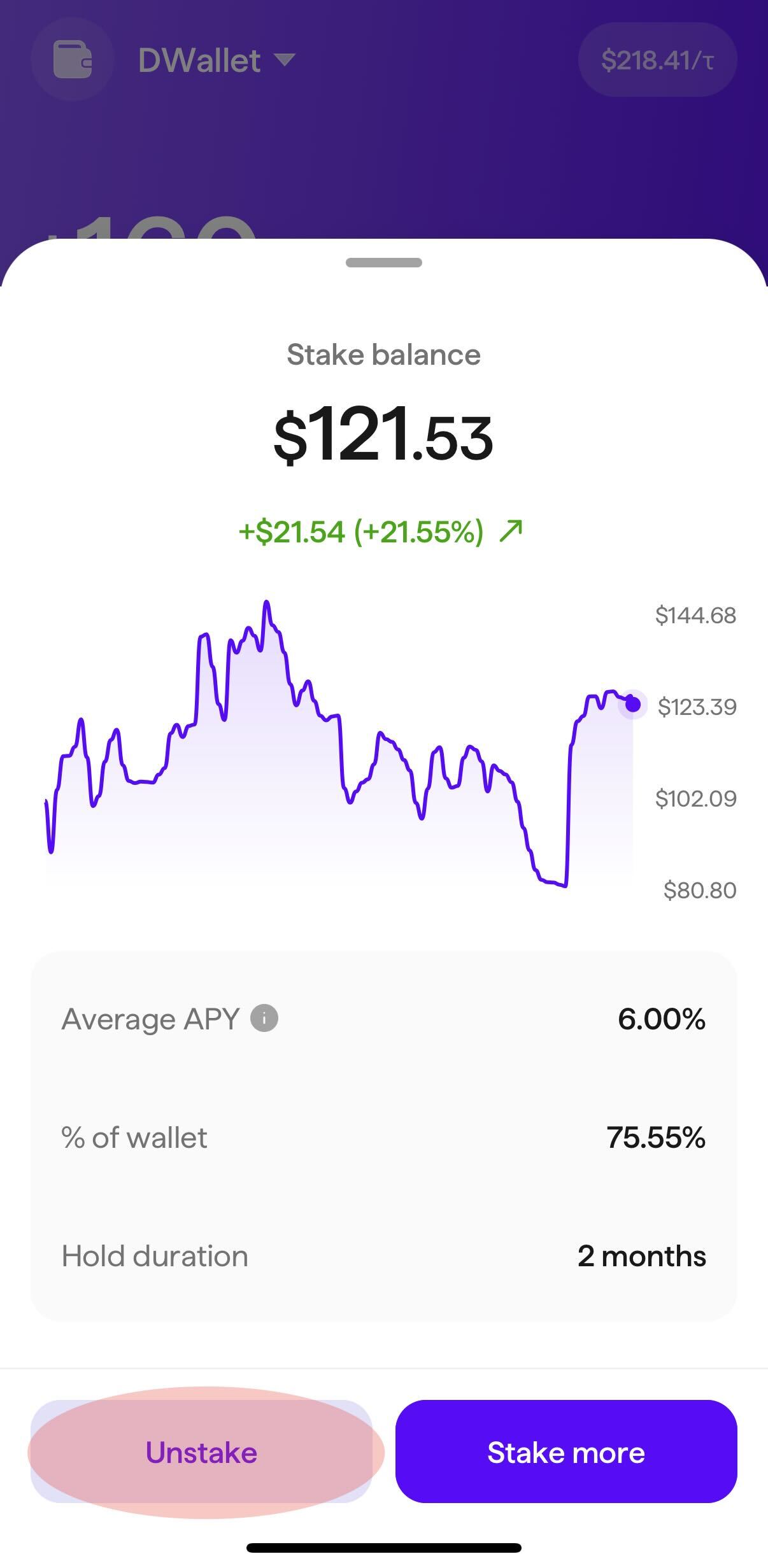
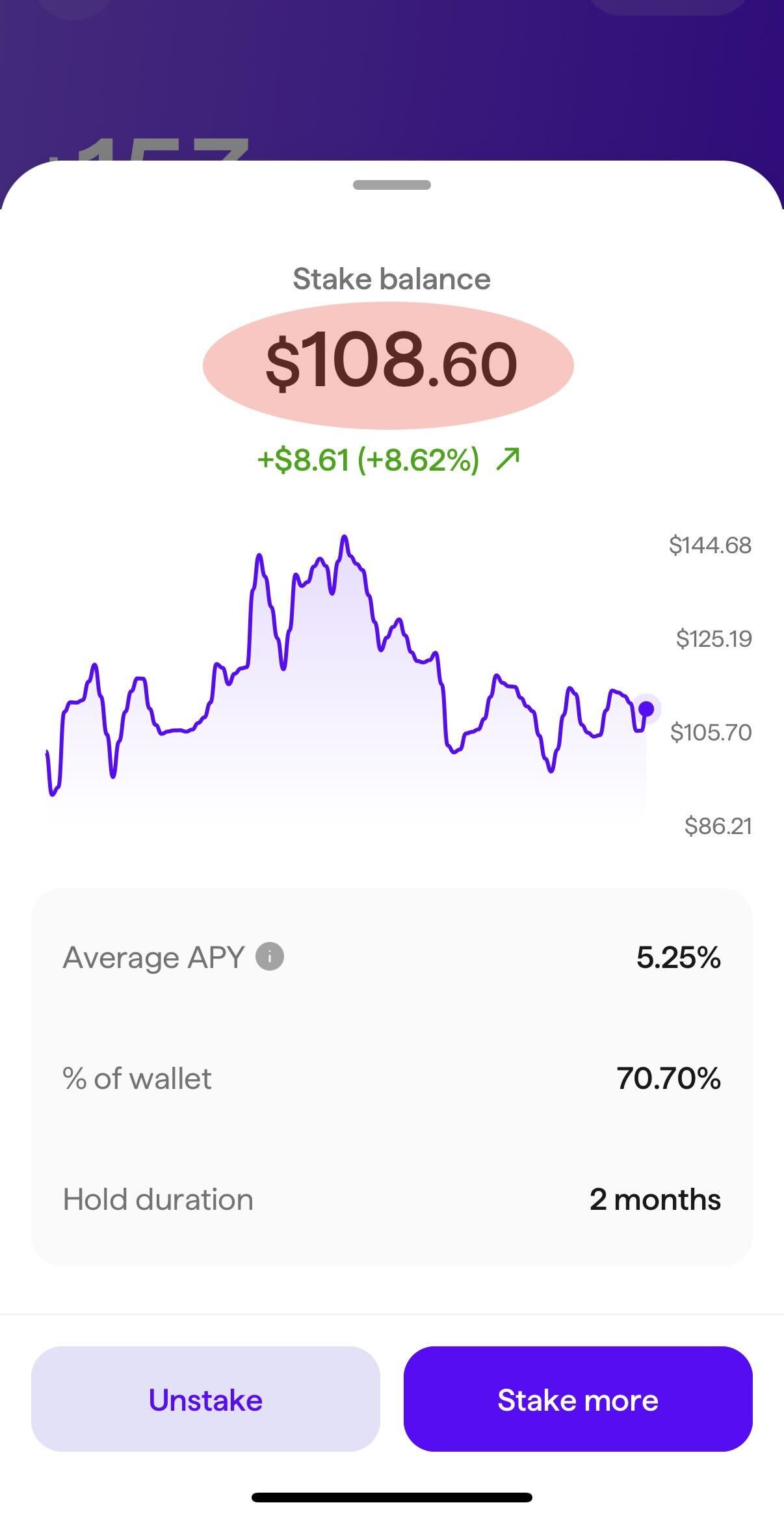
* We are aware that the value for "Average APY" may be slightly inaccurate on the Stake balance screen. From your wallet, if you have staked TAO, tap "Staked TAO" and see the row "Average APY". The percentage value shown may be incorrect (currently "stuck" at 5.45%).
* This is a result of deprecated work that was intended to be removed but accidentally remained.
* We are working on a hotfix to hide this row entirely, expected later today or tomorrow.
* In the meantime, please do not rely on that value as being accurate, though the real value will likely not fluctuate up or down more than a percentage point from 5.45%.
* This message will be updated once we have deployed our fix.
* **Update:** a fix to remove this element is now rolling out to users. An app restart may be needed to force the update.
  * We plan to restore this row later once we have implemented the proper Root APY calculation method.

#### <mark style="color:$success;">**RESOLVED:**</mark> **All-Time Low and All-Time High values not always accurate when viewing in USD**

**Fri, Dec 19th, 2025**

* We are aware of an inaccuracy on subnet "Stats" pages where the `All-time low` and `All-time high` values can be inaccurate when viewing in USD, due to an incorrect calculation. We are working to resolve this issue in our first release of 2026. As a workaround in the meantime, use the currency toggle in the top right to show these values in TAO (accurate).
* Update: this is now resolved with the v2.0.13 release.

#### <mark style="color:$success;">**RESOLVED:**</mark> **Investigating issue with Face ID not working**

**Fri, Dec 19th, 2025**

* We are investigating reports of Face ID not working when attempting to stake, and password being very difficult to enter in this situation. A temporary workaround seems to be to turn off Face ID and use password only while we determine a fix.
  * **Update:** Mon, Dec 22nd - We have a fix that will go out in our first release in 2026. In the meantime, if you face this issue, try the workaround above and see [Other Issues](/support/troubleshooting-and-help/other-issues) if that doesn't work.
  * Update: this is now resolved with the v2.0.13 release.

#### <mark style="color:$success;">**RESOLVED:**</mark>**&#x20;Investigating emissions metrics accuracy post-halving**

**Tue, Dec 16th, 2025**

* We are proactively investigating potential inaccuracy with subnet emissions metrics following the TAO halving after other platforms have reported similar issues.
  * **Update:** Thu, Dec 18th - This has been addressed and has been deployed to all users.

#### <mark style="color:$success;">**RESOLVED:**</mark>**&#x20;Reports of frozen content area**

**Thu, Dec 11th, 2025**

* Some users have reported that the content area above the tab bar can become inoperable in certain situations. A force restart of the app seems to fix the issue. We are investigating root cause and will work on a fix once identified. This message will be updated once confirmed resolved.
  * **Update:** Mon, Dec 15th - we have a fix in place to go out with our next release, expected later this week or early next.
  * **Update:** Mon, Dec 15th - some users have reported this issue during the onboarding flow as well. We are investigating and will work to fix as needed. Restarting the app and repeating the onboarding flow seems to be a workaround for now.
  * **Update:** Mon, Dec 22nd - a fix for this issue is now available in v2.0.11 which will be rolling out to all users over the next few weeks, but you can [upgrade](https://apps.apple.com/us/app/tao-com-bittensor-wallet/id6476235156) to the latest version manually now if you're facing this issue regularly.

[^1]:


# Frequently Asked Questions (FAQs)

[#downloading-the-app](#downloading-the-app "mention")

[#upgrading-from-the-legacy-bittensor-wallet-app](#upgrading-from-the-legacy-bittensor-wallet-app "mention")

[#adding-a-wallet-recovery-phrases-and-passwords](#adding-a-wallet-recovery-phrases-and-passwords "mention")

[#buying-tao](#buying-tao "mention")

[#transferring-tao](#transferring-tao "mention")

[#staking-rewards](#staking-rewards "mention")

[#transactions-and-transaction-history](#transactions-and-transaction-history "mention")

[#other](#other "mention")

## <mark style="color:purple;">Downloading the app</mark>

### I can't find TAO.com in the App Store / Google Play Store / Chrome Web Store. Where is it?

The TAO.com iOS and Android apps, and the TAO.com Chrome Extension, are not available for download in some countries such as the United Kingdom, China, Russia, India, and South Korea due to local regulations. For a full list, see [Availability by Country](/support/troubleshooting-and-help/availability-by-country).

### When will the Chrome extension be available?

The [TAO.com Chrome extension](https://chromewebstore.google.com/detail/taocom-bittensor-wallet/bdgmdoedahdcjmpmifafdhnffjinddgc?hl=en-US\&utm_source=ext_sidebar) was released July 6, 2026.

## <mark style="color:purple;">Adding a wallet, recovery phrases, and passwords</mark>

### I'm now only seeing dollars (USD) in app. Where did my TAO go?

Don't worry, your TAO is still there! By default, the TAO.com experience displays all TAO in U.S. dollars (USD) based on the current conversion rate.

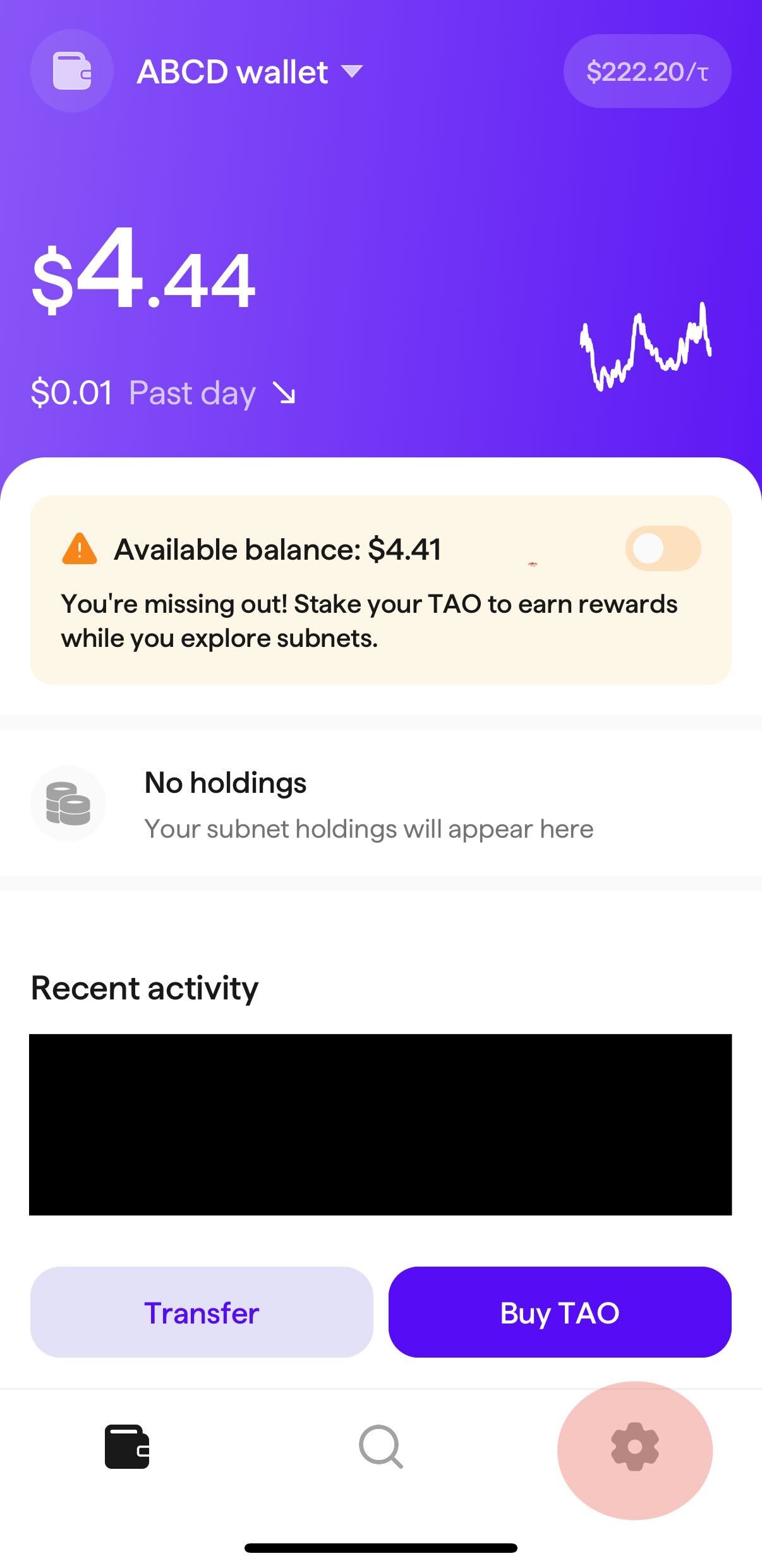
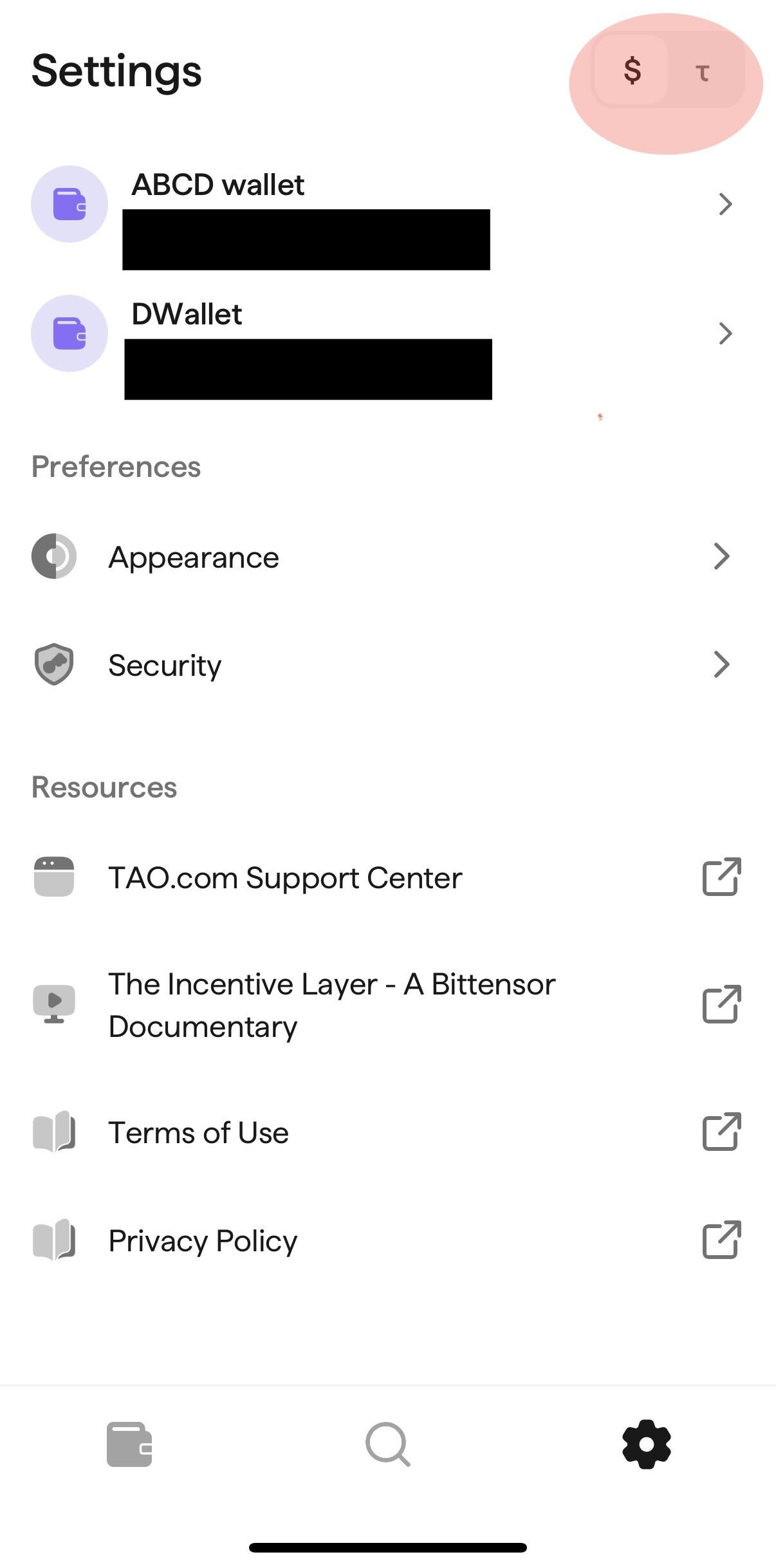
To change this back to viewing everything in TAO, simply go to Settings (tap the wallet icon in top left > Settings) and use the toggle in the top right to switch to TAO. Toggle it back and forth at any time.

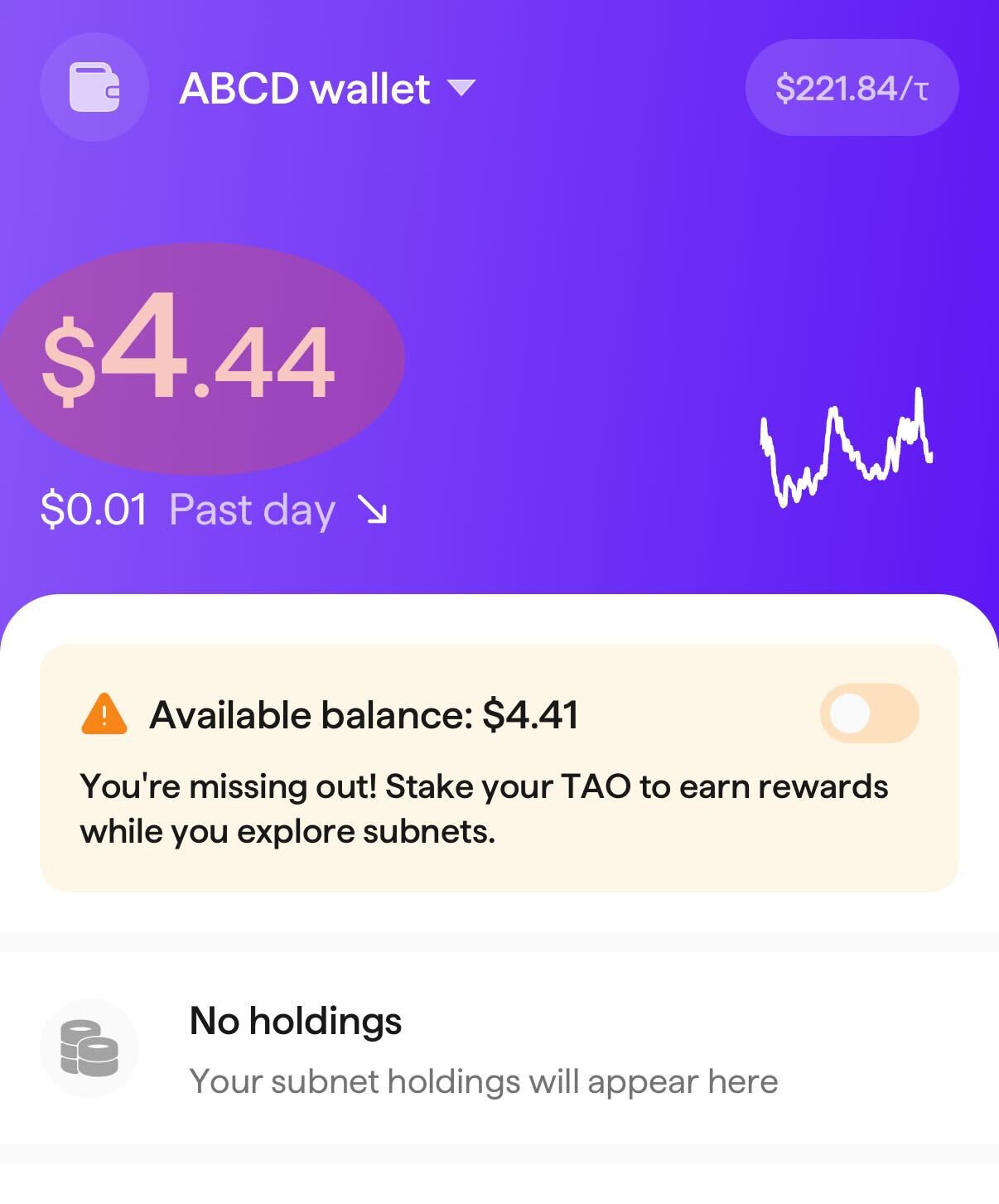
Tip: tap your wallet balance on the main screen of the app to quickly change between USD and TAO. Many other places throughout the app also support tapping a monetary value to switch it between USD and TAO - happy easter egg hunting!

### Where are my contacts that I added to my address book in the legacy Bittensor Wallet app? Can I add more contacts?

Any contacts you had added in the legacy Bittensor Wallet version of the app can now be found on the [Transferring TAO](/documentation/funding-your-wallet/transferring-tao) screen, accessible from your wallet tab in the new TAO.com experience.

At this time you cannot add new addresses or edit existing addresses. We expect to reintroduce that feature in a future release.

### I'm having trouble importing my wallet. Why isn't it working?

The most common reason for problems importing a wallet are due to an incorrectly documented recovery phrase, also known as a "seed phrase" or "mnemonic seed". For more details, see [Recovery Phrase Not Working](/support/troubleshooting-and-help/help-with-recovery-phrases-and-passwords/recovery-phrase-not-working), or [Importing an Existing Wallet](/documentation/getting-started/adding-a-wallet/importing-an-existing-wallet) for general help with importing a wallet.

### I forgot my recovery phrase. Is there any way you can help me import or access my wallet?

TAO.com is a non-custodial wallet, meaning that we do not have access to your private keys or recovery phrase, also known as a "seed phrase" or "mnemonic seed". We have no ability to access or control user wallets. For more details, see [Lost Recovery Phrase](/support/troubleshooting-and-help/help-with-recovery-phrases-and-passwords/lost-recovery-phrase).

### I forgot my password and can no longer make transactions. How can I recover it?

We have no way of recovering your password but you can remove your wallet and reimport it using your recovery phrase to set a new password and/or turn on biometric approval like Face ID. Be absolutely sure that you have correctly recorded your recovery phrase before removing your wallet, then follow the instructions on [Forgot Password](/support/troubleshooting-and-help/help-with-recovery-phrases-and-passwords/forgot-password).&#x20;

For issues with your recovery phrase (different from your password), see [Recovery Phrase Not Working](/support/troubleshooting-and-help/help-with-recovery-phrases-and-passwords/recovery-phrase-not-working) or [Lost Recovery Phrase](/support/troubleshooting-and-help/help-with-recovery-phrases-and-passwords/lost-recovery-phrase).

## <mark style="color:purple;">Buying TAO</mark>

### I thought I could use the app to buy TAO, but am not seeing any way to purchase TAO. Why not?

The ability to buy TAO is not available in all countries due to local regulations. For more details, see [Help with Buying TAO](/support/troubleshooting-and-help/help-with-buying-tao).

### Can I buy TAO through the app through a provider other than Coinbase?

Coinbase is currently the only option for buying TAO through the TAO.com app, but TAO is available for purchase on many crypto exchanges and can then be transferred to your TAO.com wallet. For more details, see [Transferring TAO](/documentation/funding-your-wallet/transferring-tao).

### I'm having an issue buying TAO with Coinbase. Can you help?

TAO.com integrates directly with [Coinbase Onramp](https://help.coinbase.com/en/coinbase/trading-and-funding/coinbase-pay/using-onramp) to seamlessly purchase TAO that is delivered directly into your TAO.com wallet. The most common issues with buying TAO with Coinbase are Coinbase-controlled delays or requirements that Coinbase alone can help with, but see [Help with Buying TAO](/support/troubleshooting-and-help/help-with-buying-tao) for more details.

## <mark style="color:purple;">Transactions & transaction history</mark>

### I just made a transaction (bought TAO, transferred TAO, staked TAO, bought/sold a subnet, etc) but am not seeing the transaction in my Transaction History. Did it go through?

Transactions can take up to a few minutes to appear in your Transaction History. In the meantime, check other areas of your wallet that display data in real-time, such as your wallet balance, stake, or holdings to confirm it the transaction went through.

### How can I choose the validator I want to stake to when I stake my TAO or buy subnet tokens?

All staking transactions made in the TAO.com app are automatically staked through the TAO.com validator. This simplifies the user experience and helps us fund TAO.com so that we can maintain and improve the TAO.com app and invest in additional future products that help the Bittensor ecosystem grow.

If you have already staked TAO to a non-TAO.com validator, you will see that in the TAO.com app where applicable.

## <mark style="color:purple;">Staking rewards</mark>

### How do I view my Root staking rewards?

Rewards for staking TAO are automatically added to your Staked TAO balance as they're received. Tap on "Bittensor" on your wallet tab and find the "Staked" field to see how your stake balance is changing over time.

### How often are Root staking rewards added to my balance?

On average, staking rewards are added every day or two, but on average within a 30-hour time frame. The time frame varies and can be longer or shorter due to how rewards are distributed.&#x20;

Specifically, the protocol randomly selects wallets to receive staking rewards. The protocol selects 5 wallets per every 12 second block, taking on average approximately 30 hours to go through all the wallets. However, the 5 wallets to reward are randomly selected, making it possible to get claimed more or less frequently than the 30 hour average.

## <mark style="color:purple;">Other</mark>

### Does TAO.com support cold wallets like Ledger or Trezor?

No, at this time TAO.com is not compatible with cold wallets, including Ledger or Trezor. Though a common request we receive, we do not have any ETA at this time as to when we might add support for cold wallets.

### I am trying to confirm the three words of my seed phrase after creating a new wallet, and the app will not let me scroll past the second word to confirm. Could you assist?

It sounds like the text size on your particular device may need to be adjusted for this screen with the following steps: go to the Settings app on your phone > Accessibility > Display & Text Size > Larger Text and toggle off the "Larger Accessibility Sizes" switch. Then, return to the TAO.com app. That adjustment should bring all the content into view.

Once you’ve added your wallet successfully, you can revert your text size back to its original setting.

### Why haven't you replied to my tweet on X?

We do not officially provide wallet support on X (formerly Twitter), but we may from time to time reply to comments on our own posts at our discretion, always from our official [@TAO\_dot\_com](https://x.com/TAO_dot_com) account. We do not reply to comments on other posts, as for security reasons this does not allow us to hide posts from impersonators who may try to hijack the conversation.

Before responding to any post that looks like it is from us, double-check that it is from our official [@TAO\_dot\_com](https://x.com/TAO_dot_com) account. We will never ask you to email an @gmail.com account or ever ask for your wallet recovery phrase - these are common methods for scammers to attempt to steal your funds.

We generally do not respond to direct messages (DMs) sent to our official account on X. We recommend using the content in this Support Center to troubleshoot any issues you may be having.

Posts by our employees or team members on their personal social accounts are not vetted by our organization. Any opinions expressed on personal social accounts do not necessarily represent the opinions of our organization.

### I have a question about my toothbrush. Can you help?

No, despite the many inquiries we get receive about the [TAO Clean toothbrush](https://www.taoclean.com/), TAO.com does not manufacture or provide support for toothbrush orders or issues. You're probably looking for <https://www.taoclean.com/pages/contact-us> or <support@taoclean.com>


# Wen Android?

The TAO.com Android was launched Monday, June 1st, 2026: <https://play.google.com/store/apps/details?id=com.tensora.tao>


# Troubleshooting & Help

Please refer to our guides below for troubleshooting common issues.


# Help with Recovery Phrases & Passwords

{% content-ref url="/pages/ZEGSLfBb6x2vqy6n2YqX" %}
[Recovery Phrase Not Working](/support/troubleshooting-and-help/help-with-recovery-phrases-and-passwords/recovery-phrase-not-working)
{% endcontent-ref %}

{% content-ref url="/pages/hvSgyYPn3kQnGzR7Jaq5" %}
[Lost Recovery Phrase](/support/troubleshooting-and-help/help-with-recovery-phrases-and-passwords/lost-recovery-phrase)
{% endcontent-ref %}

{% content-ref url="/pages/6EOvtWNYiFoHzRbLsI3w" %}
[Forgot Password](/support/troubleshooting-and-help/help-with-recovery-phrases-and-passwords/forgot-password)
{% endcontent-ref %}


# Recovery Phrase Not Working

TAO.com is a non-custodial wallet, meaning that we do not have access to your private keys or recovery phrase, also known as a "seed phrase" or "mnemonic seed". We do not have any record of, or access to, your recovery phrase to assist you - the app only stores that on your phone; it is not stored by us. We have no ability to access or control user wallets.

If your recovery phrase isn't working, the only solution is to troubleshoot what may be wrong with the recovery phrase you have stored / written down. Try the following steps:

1. **Verify spelling** - Recovery phrases consist of words from the official, industry-standard [BIP39 Wordlist](https://cryptotag.io/bip39-list/). Verify the spelling of the words in your recovery phrase against that list to ensure that each word is spelled correctly.
2. **Verify word order** - Words in your recovery phrase must be entered in a specific order. Confirm you are entering your recovery phrase in exactly the same order you have stored.&#x20;
3. **Formatting** - Be sure that your recovery phrase is being formatted correctly when entering or pasting it into the app. The app can handle two formats of recovery phrases:
   1. With spaces: `wordA wordB wordC etc`&#x20;
   2. With numbers,dashes, and spaces: `1-wordA 2-wordB 3-wordC etc`
4. **Verify word count** - recovery phrases consist of either 12, 15, 18, 21, or 24 words. Be sure your recovery phrase contains a number of words that matches one of those counts.

If your recovery phrase is working but the amount of the balance in that wallet does not match what you expect, see [Help with Unfamiliar Transactions](/support/troubleshooting-and-help/help-with-unfamiliar-transactions).


# Lost Recovery Phrase

TAO.com is a non-custodial wallet, meaning that we do not have access to your private keys or recovery phrase, also known as a "seed phrase" or "mnemonic seed". We do not have any record of your recovery or access to your recovery phrase to assist you - the app only stores that on your phone; it is not sent to us. We have no ability to access or control user wallets.

Unfortunately, the only recourse is to continue to search for where you may have stored your recovery phrase.

If you have your recovery phrase but it's not working, see [Recovery Phrase Not Working](/support/troubleshooting-and-help/help-with-recovery-phrases-and-passwords/recovery-phrase-not-working).


# Forgot Password

TAO.com is a non-custodial wallet, meaning that we do not have access to your wallet password(s). These are stored locally on your device. Note that each wallet has its own password (though technically you may choose to use the same phrase as your password for multiple wallets - not recommended).

For issues with your recovery phrase (different from your password), see [Recovery Phrase Not Working](/support/troubleshooting-and-help/help-with-recovery-phrases-and-passwords/recovery-phrase-not-working) or [Lost Recovery Phrase](/support/troubleshooting-and-help/help-with-recovery-phrases-and-passwords/lost-recovery-phrase).

If you forget your password, you can remove your wallet and reimport it using your recovery phrase to set a new password and turn on biometric approval like Face ID. Be absolutely sure that you have correctly recorded your recovery phrase before removing your wallet.

{% stepper %}
{% step %}

### Confirm you have stored your recovery phrase correctly

Your recovery phrase, also known as a "seed phrase" or "mnemonic seed", is the 12-, 15-, 18-, 21-, or 24-word phrase that gives anyone with the phrase access to the wallet.&#x20;

You'll need your recovery phrase to reimport your wallet, so check to make sure that you have access to it.

DO NOT PROCEED with the next steps unless you are confident that you have access to your recovery phrase, otherwise you will be unable to reimport your wallet and lose access to your wallet entirely.
{% endstep %}

{% step %}

### Remove your wallet

Once you have confirmed that you have your recovery phrase, remove your wallet. In the TAO.com app, go to the Settings tab (gear icon), tap the corresponding wallet (if you have multiple), and tap `Remove wallet`.

Read the warning text and tap the red `Remove wallet` button when you are ready to continue.
{% endstep %}

{% step %}

### Reimport your wallet and set new password

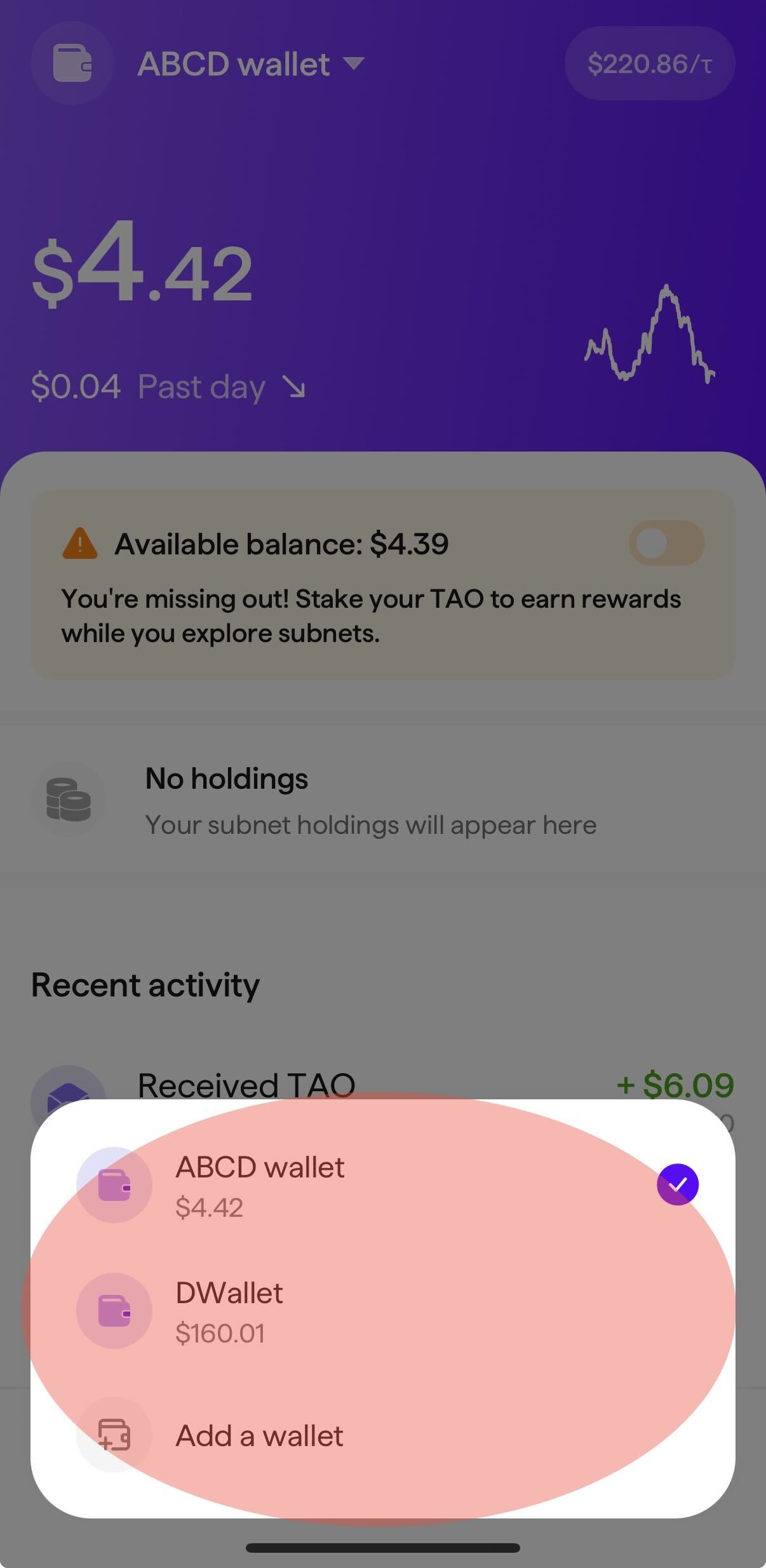
On the wallet tab, tap `Add a wallet`. If you have no wallets, this should appear in the middle of the screen. If you still have other wallets that you have not removed, find this in the wallet switcher in the top left of the screen by tapping on your currently active wallet name.

On the Add a wallet screen, tap the `Import existing wallet` button and chose your desired import method.

After naming your wallet, you will be prompted to enter a new password for this wallet.
{% endstep %}
{% endstepper %}

You have now reset your password. Be sure to store this password securely.

If you have not already set up Face ID or other available biometrics security feature, we recommend you do so to avoid having to type in your password every time you take an action requiring authentication.


# Help with Unfamiliar Transactions

If you see a transaction on your account that you do not recognize at first, follow these steps:

1. Consider if it **was a transaction that you made, but that you don't recognize** because you might have thought you were making the transaction on a different wallet, the transaction was made relating to a subnet that has changed names, or the amount may look different than you remember due to fees, slippage, or other common variables that occur in the process of making a transaction.
2. **Check** [TAO.com Status](/support/tao.com-status) to confirm that there are no issues with the app resulting in information being displayed incorrectly. If you'd like confirm with us, see [Other Issues](/support/troubleshooting-and-help/other-issues).

If none of the above apply, and **you are sure the transaction is unauthorized** (especially if all of your funds have been transferred out of your wallet and your wallet balance is $0), you unfortunately may be the victim of a crypto theft or scam.

TAO.com is a non-custodial wallet, meaning that we do not have access to your private keys or recovery phrase, also known as a "seed phrase" or "mnemonic seed". We have no ability to access or control user wallets, nor reverse or recover any funds that were transferred out of your wallet unintentionally or in an authorized fashion.&#x20;

In this situation, we recommend contacting your local law enforcement to report the stolen funds.

If you are located in the United States, please refer to the following resources:

1. FBI's Internet Crime Complaint Center (IC3) -  [ic3.gov/Home/FileComplaint](http://ic3.gov/Home/FileComplaint)
2. Federal Trade Commission (FTC) - [ReportFraud.ftc.gov](http://reportfraud.ftc.gov/)
3. Commodity Futures Trading Commission (CFTC) - [CFTC.gov/complaint](http://cftc.gov/complaint)

If you are not located in the United States, contact your local authorities overseeing crypto theft.<br>


# Help with Buying TAO

### I thought I could use the app to buy TAO, but am not seeing any way to purchase TAO. Why not?

The ability to buy TAO is not available in all countries due to local regulations. We only show the ability to buy TAO to countries where our integration with Coinbase operates. Specifically, we look at your [App Store region](https://support.apple.com/en-us/118283) and hide the button for any countries not supported by the  [Coinbase Onramp Config API](https://docs.cdp.coinbase.com/onramp-&-offramp/onramp-apis/countries-&-currencies).

If you are in a country where we do now show the ability to buy TAO, you can still fund your wallet by purchasing TAO from a crypto exchange available in your country and then transferring the TAO to your TAO.com wallet. For more details on transferring TAO to your wallet, see [Transferring TAO](/documentation/funding-your-wallet/transferring-tao).

### Can I buy TAO through the app through a provider other than Coinbase?

Coinbase is currently the only option for buying TAO through the TAO.com app, but TAO is available for purchase on many crypto exchanges and can then be transferred to your TAO.com wallet. For more details, see [Transferring TAO](/documentation/funding-your-wallet/transferring-tao).

### I'm having an issue buying TAO with Coinbase. Can you help?

TAO.com integrates directly with [Coinbase Onramp](https://help.coinbase.com/en/coinbase/trading-and-funding/coinbase-pay/using-onramp) to seamlessly purchase TAO that is delivered directly into your TAO.com wallet. The most common issues with buying TAO with Coinbase are Coinbase-controlled delays or requirements that Coinbase alone can help with.

If the issue you're facing is happening on a mobile browser on your phone like Safari or Chrome with the domain pay.coinbase.com or coinbase.com, or in the Coinbase app, refer to [Coinbase's Help Center](https://help.coinbase.com/) for support.

Some common limitations of buying TAO with Coinbase:

* Purchasing TAO with Coinbase's Apple Pay or debit card feature is not available in all countries and is managed exclusively by Coinbase.
* Coinbase has various restrictions on purchase amounts that vary by country and user. When having an issue purchasing large amounts of TAO, refer to their error messages for more details.
* Coinbase has various restrictions on the time between when you open a Coinbase account, when you can start purchasing funds, and when you can actually transfer funds to a different wallet. When running into these limitations when purchasing TAO, refer to their messaging and notifications for more details.

For additional support, visit [Coinbase's Help Center](https://help.coinbase.com/).

### Coinbase says it successfully transferred TAO to my TAO.com wallet but I don't see it in my Transaction History. Did it work?

Transactions often lag a few minutes before showing in Transaction History. For more details, see [Viewing Your Transaction History](/documentation/managing-your-portfolio/viewing-your-transaction-history). However, while it may not yet show in your Transaction History, you should see the TAO reflected in your wallet balance automatically within a few seconds. If you do not see it, check to make sure you're looking at the correct wallet (if you have multiple wallets) or restart the app to force your balance amount to refresh (though it should refresh automatically).


# Availability by Country

The TAO.com iOS, Android, and Chrome Extension are available in most countries around the world. They may *not* be available in the below countries due to local regulations. Check your local app store for details.

:flag\_af: Afghanistan

:flag\_dz: Algeria

🇧🇾 Belarus&#x20;

🇨🇳 China

🇪🇬 Egypt

🇮🇳 India

🇮🇶 Iraq

🇲🇦 Morocco

🇲🇲 Myanmar

🇳🇵Nepal

🇰🇵 North Korea

🇲🇰 North Macedonia

🇵🇰 Pakistan

🇶🇦 Qatar

🇷🇺 Russia

🇸🇦 Saudi Arabia

🇰🇷 South Korea

🇹🇳 Tunisia

🇬🇧 United Kingdom

🇻🇪 Venezuela

🇾🇪 Yemen


# Other Issues

If you have a different issue that is not answered in this Support Center, follow these steps:

1. Confirm you've reviewed [Frequently Asked Questions (FAQs)](/support/frequently-asked-questions-faqs) for answers to common questions.
2. Use the search feature at the top of all pages in our Support Center to find a detailed answer to your issue.
3. If you still haven't found an answer, email us at <support@tao.com>. To ensure the fastest response, provide as much of the following information as possible:
   1. Describe your issue in as much detail as possible:
      1. What are you seeing that is not what you expected / what issue are you experiencing?
      2. What happened leading up to your issue?
   2. Provide us details of your device and app version.
      1. Provide us the Model Name of your device, i.e. `iPhone 16`.&#x20;
         1. On iOS, find this by going to the Settings app > About > Model Name.
      2. Provide us the version of the TAO.com app you have installed, i.e. `3.0.1 (122)`.&#x20;
         1. Find this by tapping on the wallet icon in the top left of the Wallet tap > Settings and scroll to the bottom of the screen.
      3. If the issue relates to a specific wallet, provide your wallet address (NOT your recovery phrase), i.e. `5GuRLEMgsMQsKYXQ0CjvQGpDyiMuSCcdkyQNz4nuoHURiuaC`&#x20;
         1. Find this by opening the TAO.com app, go to Settings > tap the specific wallet > tap the "Copy wallet address" row. It should be a long text string with a mix of letters and numbers.

NEVER share your recovery phrase with anyone, including TAO.com. We will NEVER ask for it - immediately cease communications for anyone who asks for it. Anyone who has your recovery phrase can transfer all funds out of your wallet. Your recovery phrase is a 12-, 15-, 18-, 21-, or 24-word phrase that may contain numbers and hyphens (i.e. `1-crash 2-jewel 3-table etc` ) or simply be a series of words without numbers and hyphens (i.e. `crash jewel table`).

Contacting TAO.com via the email address above is the ONLY official method to get support directly from the TAO.com team. To reduce the risk of scams impersonating our support team, we do not provide live chat support on Discord, X, or any other social media platform, nor do we provide phone support. Immediately cease communications with any account or individual claiming to offer live support as TAO.com. If you believe you might be a victim of a scam, see [Help with Unfamiliar Transactions](/support/troubleshooting-and-help/help-with-unfamiliar-transactions).

We will definitely never DM (direct message) you first. Immediately cease communications with anyone claiming to be TAO.com who DMs you first. This is a common method for scammers in the crypto space to impersonate support teams for wallet apps.

Avoid posting about issues publicly, i.e. on social media like Discord or X, as this is a common way to be targeted by scammers impersonating TAO.com.


# Feedback & Feature Requests

**Want to suggest a change to the app?**&#x20;

Fill out our [Feature Request / Feedback Form](https://smiling-walleye-fe2.notion.site/287ae7e8d21280508130c987acfaa9c3?pvs=105).

**Have positive feedback?**&#x20;

We'd love to hear it! Provide a review on the TAO.com App Store page or Google Play Store page. While you're at it, follow us at [@tao\_dot\_com](https://x.com/TAO_dot_com) on X.


# Release Notes

{% updates format="full" %}
{% update date="2026-07-10" %}

## iOS & Android v3.0.3 (hotfix)

* Refined slippage calculation
* Fixed missing timestamp in Activity History
  {% endupdate %}

{% update date="2026-07-08" %}

## Extension v3.0.8

MULTI-LANGUAGE

* View the app in 10 different languages; pick your language from the Settings page (click your wallet name in top left of wallet tab > Settings).

SWAP

* Input is now defaulted to enter tokens but corresponding currency value now matches currency setting (USD or TAO) rather than just USD.
* Input now has currency symbol to know what currency you're swapipng in.
* Transaction review screen now shows raw token amounts.
* Now showing asset name instead of token number.

EXPLORE

* TAO price and other values on TAO page defaulted to USD - no value toggling to see TAO stats in TAO.

ACTIVITY HISTORY

* Activity history now auto-refreshes more frequently.
* Transaction completion toasts no longer disappear as quickly.

OTHER

* Various copy changes.
* Various minor fixes.
  {% endupdate %}

{% update date="2026-07-06" %}

## Extension v3.0.7 (launch)

The TAO.com Chrome Extension is now available!

EVOLVED FOR THE ECOSYSTEM

The early Bittensor Wallet extension has upgraded to TAO.com. Enjoy the same trusted non-custodial architecture, completely redesigned from the ground up with a modern interface and expanded features. As always, your keys remain private. The extension has been entirely optimized to make managing your assets easier and more secure than ever.&#x20;

TRACK & STAKE&#x20;

• Transfer and receive tokens in minutes.&#x20;

• Monitor market value with real-time USD price data.&#x20;

• Stake your funds to earn rewards directly from the network.&#x20;

DISCOVER & TRADE SUBNETS&#x20;

• Browse decentralized AI startups across the network.&#x20;

• Review live performance data about each active subnet.&#x20;

• Seamlessly trade and stake subnet tokens.&#x20;

MANAGE YOUR PORTFOLIO&#x20;

• Track your staked funds and subnet holdings in one place.&#x20;

• Monitor the performance of your allocations over time.&#x20;

• Adjust your positions in seconds. Start your decentralized AI journey today with TAO.com.&#x20;

\--- Loving the app? Follow us on X (Twitter) at @TAO\_dot\_com. Visit our site to explore our companion iOS and Android mobile apps. Have a question or feedback? Get support and submit inquiries at support.TAO.com.
{% endupdate %}

{% update date="2026-07-06" %}

## iOS & Android v3.0.3 (hotfix)

Fixed an issue that was causing screen to freeze in some places.
{% endupdate %}

{% update date="2026-07-03" %}

## iOS v3.0.3

Bug fix to an upcoming feature - no user impact.
{% endupdate %}

{% update date="2026-07-01" %}

## Android v3.0.3

Bug fix to an upcoming feature - no user impact.
{% endupdate %}

{% update date="2026-07-01" %}

## iOS & Android v3.0.2 (hotfix)

Bug fix to an upcoming feature - no user impact.
{% endupdate %}

{% update date="2026-06-29" %}

## iOS & Android v3.0.2

WALLET TAB

* Added Available TAO amount to yellow banner for at-a-glance view of the TAO you have available to trade or stake
* Fixed a bug where token amounts of assets changed when switching between TAO and USD currency selections

HOLD

* Fixed a bug where Activity wasn’t showing for TAO page if all your TAO was staked
* Improved the experience when viewing a Hold immediately after purchasing for the first time

ACTIVITY HISTORY

* In the Activity History list, for failed transactions, show the chain fee charged rather than the amount that failed
* On a transaction receipt, view the amount in your selected currency or token by tapping on the amount value

EXPLORE TAB

* The ability to sort by price change and subnet number is back by popular demand!
* Sorts are now all available in the sort dropdown, not just in the column headers

TAO/SUBNET TOKEN SCREENS

* Subnet registration cost section on TAO token page now follows selected time range
* Subnet links (website, X account, Github, etc) are back by popular demand!
* Explainer tooltips added to various subnet stats to explain what each stat means

SWAP TAB

* Back by popular demand, you can now enter TAO when swapping instead of being limited to entering the subnet token or USD.
* You can now quickly switch the top and bottom token in the swap form to sell instead of buy
* Switching between wallets resets the swap form rather than carrying over your draft trade from a previous wallet
* Various UX improvements to the Swap tab, including improved validation and error handling

OTHER

* Various bug fixes and copy, styling, and performance improvements
* Some exciting new things hidden for now that we're excited to reveal soon!
  {% endupdate %}

{% update date="2026-06-08" %}

## iOS v3.0.1 (feature reveal)

In our biggest release since relaunching as TAO.com in December 2025, this release includes:

* A fresh new design across the entire app
* An updated Wallet tab to track your portfolio, assets, activity history, and multiple wallets
* A redesigned Explore tab experience to make it easier to find and explore subnets
* Redesigned TAO and subnet token pages with new stats and details
* A new Swap tab to quickly buy, sell, and swap tokens
* An enhanced Swap experience to swap directly between subnet tokens, staked TAO, and available TAO.
* An improved activity history experience to track the progress of your transactions and easily explore your transaction history
* New wallet customization features, including wallet iconography, hidden token settings, and password change abilities
* An improved Send (previously Transfer) experience for sending TAO between wallets
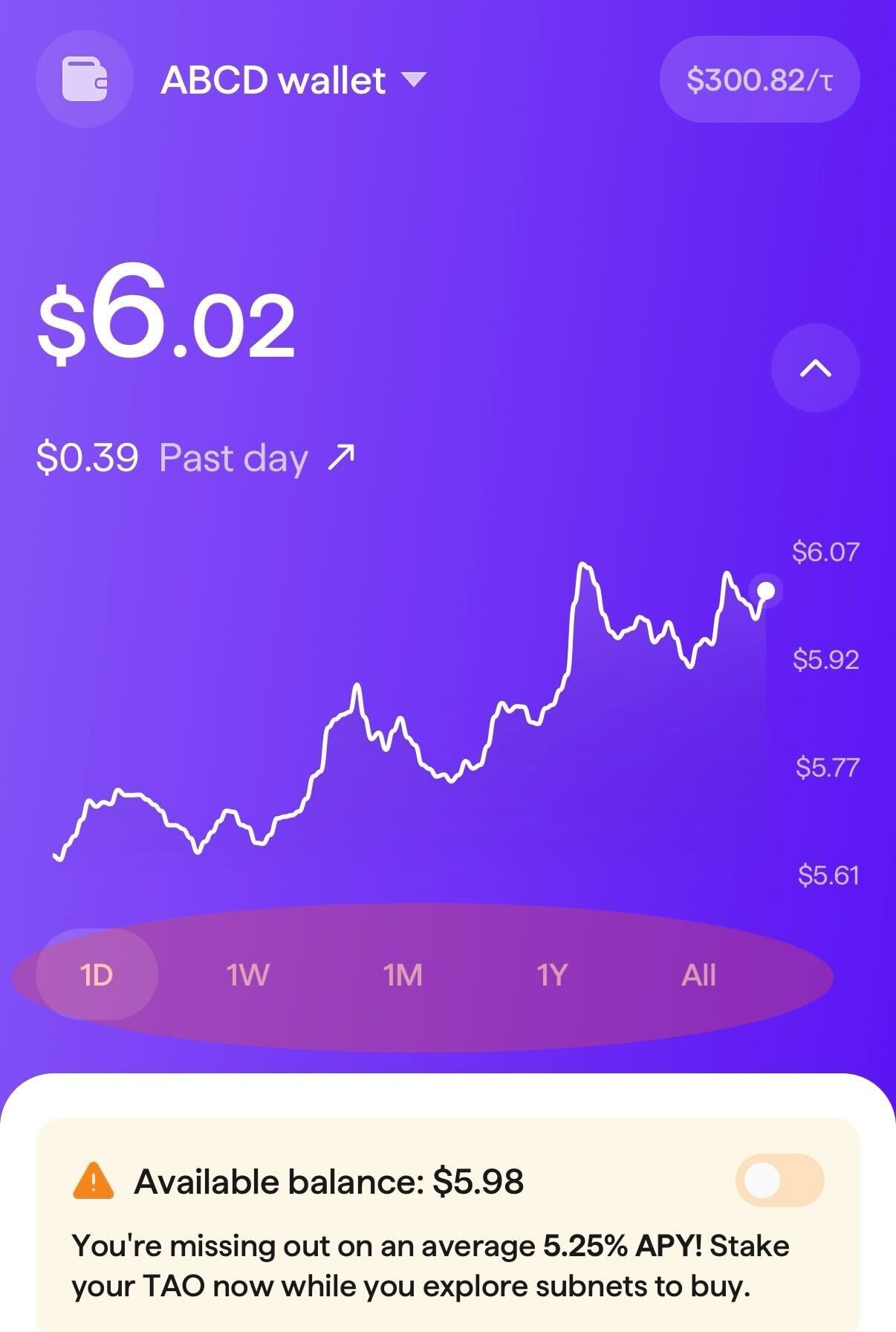
* Expanded graphs and time ranges

We'd love to know what you think! Let our intern know on X (Twitter) at @TAO\_dot\_com.
{% endupdate %}

{% update date="2026-06-01" %}

## Android and iOS v3.0.1 (hotfix)

Fixes for the following bugs:

* Android only: wallet icon selection wasn't working
* Android only: wallet tab graph wasn't always displaying fully
* TAO price on TAO token page would briefly show $0 before data loaded
* Activity History wasn't showing correct currency for some transactions
  {% endupdate %}

{% update date="2026-06-01" %}

## Android v3.0.0 (launch)

The TAO.com Android app is now available!

In our biggest release since relaunching as TAO.com in December 2025, this release includes:

* A fresh new design across the entire app
* An updated Wallet tab to track your portfolio, assets, activity history, and multiple wallets
* A redesigned Explore tab experience to make it easier to find and explore subnets
* Redesigned TAO and subnet token pages with new stats and details
* A new Swap tab to quickly buy, sell, and swap tokens
* An enhanced Swap experience to swap directly between subnet tokens, staked TAO, and available TAO.
* An improved activity history experience to track the progress of your transactions and easily explore your transaction history
* New wallet customization features, including wallet iconography, hidden token settings, and password change abilities
* An improved Send (previously Transfer) experience for sending TAO between wallets
* Expanded graphs and time ranges

We'd love to know what you think! Let our intern know on X (Twitter) at @TAO\_dot\_com.
{% endupdate %}

{% update date="2026-05-04" %}

## iOS v2.1.2

* Multi-language support - view the app in 10 different languages; pick your language from the Settings tab.
* Improved speed of creating/importing wallets
* Better handling for offline use cases
* Various copy and style fixes
  {% endupdate %}

{% update date="2026-03-23" %}

## iOS v2.0.19

* Added a warning on low-liquidity subnets (less than 1,000 TAO) to ensure awareness about potentially higher slippage
* Fixed issues with Transaction History where less common transactions for receiving and swapping subnet tokens done on non-TAO.com apps (but displayed in teh TAO.com app) were displaying the amount of subnet tokens as TAO rather than converted TAO amount, and fixed other display issues with these less common transaction types.
* Fixed missing confirmation toast on wallet import
* Updated MEV shield functionality to align with blockchain change
* Minor copy fixes and improvements
* Various stylistic fixes and improvements
  {% endupdate %}

{% update date="2026-03-16" %}

## iOS v2.0.17 (hotfix)

* Updated MEV protection to future-proof for forthcoming changes to the Bittensor chain on March 19th that changes how MEV protection works.
  {% endupdate %}

{% update date="2026-02-20" %}

## iOS v2.0.17

A few minor fixes included in this release:

* We've fixed an issue in the Transaction History where subnet sale transactions were inaccurately labeling the sale as "tokens" instead of TAO.
* We've fixed an issue where there was a double dollar sign displayed on the review page when buying TAO.
  {% endupdate %}

{% update date="2026-02-17" %}

## iOS v2.0.16 (feature reveal)

We've turned on improved user experiences for:

* Buy TAO
* Stake/Unstake TAO (to/from Root)

These transaction types now have simplified experiences for entering the amount you want to transact and proceeding with your transaction, akin to PayPal or Venmo experiences you’re already familiar with.

<div><figure><img src="/files/6aaFxh0ciKhKAeyEWR94" alt="" width="188"><figcaption><p>New Buy TAO experience</p></figcaption></figure> <figure><img src="/files/GyGd1yFVAiKHBdvLzW5q" alt="" width="188"><figcaption><p>New Stake/Unstake experience</p></figcaption></figure></div>
{% endupdate %}

{% update date="2026-02-10" %}

## iOS v2.0.16 (hotfix)

This update enables the app to load even if it doesn't have the necessary connections to the chain. This prevents leaving users stuck on the app startup (splash) screen without any awareness of what is going on.
{% endupdate %}

{% update date="2026-02-09" %}

## iOS v2.0.16

We’re excited to provide quite a few updates with this release:

* Slippage tolerance - you can now set your own slippage tolerance when buying or selling subnets. If your transaction would result in higher slippage than specified, your transaction will be stopped to protect you from losing value.
* We’ve optimized how we load data on subnet pages, resulting in charts and info that loads faster than before.
* In Transaction History, we’re now showing on the overview list when a transaction has failed. Previously you had to tap in to see whether it failed or not, which was annoying.
* In Transaction History, we fixed an issue where subnet sale transactions were showing the incorrect amount. They were showing the amount of subnet tokens instead of TAO as labeled. This is now fixed.
* We added messaging when viewing a hold that doesn’t have enough data yet. Previously it just sat there with an infinite loading icon with no indication of why it wasn’t loading, which wasn’t a great experience.
* We’ve made some of the error messages more user friendly. Previously we were just passing them along from the chain code, which wasn’t the most human-readable.
* We fixed some issues relating to caching that was resulting in users seeing some instances of old wallet values that required restarting to refresh the data. We are still working on additional cases of this issue - more improvements to come in our next release.
* We fixed an issue where the available TAO row was not showing after going from $0 balance to a minimal balance.
* We fixed an issue where the “Buy maximum” button wouldn’t work when balance was too low to cover network fees.

Enjoy!
{% endupdate %}

{% update date="2026-01-26" %}

## iOS v2.0.15

While we continue working on larger initiatives not yet ready for release, this version includes the following minor enhancements:

* An app version number has been added to Settings to assist with customer support inquiries
* We fixed an issue where small holdings (less than 0.5% of wallet) were not showing for some users
* We fixed an issue where editing the wallet name was not immediately reflected upon saving
  {% endupdate %}

{% update date="2026-01-22" %}

## iOS v2.0.14 (hotfix)

This update offers extra protection on top of existing native chain MEV Shield functionality by submitting all subnet buys as limit orders under the hood with an extra 0.1% slippage tolerance on top of expected slippage. This change protects users from MEV bots using advanced tactics that the native chain functionality doesn't fully protect against.

See also our [announcement](https://x.com/TAO_dot_com/status/2014416806065406385?s=20) on X.
{% endupdate %}

{% update date="2026-01-15" %}

## iOS v2.0.14

SECURE, ENCRYPTED TRADING WITH MEV SHIELD

We’ve integrated Bittensor’s MEV Shield to protect your trades from price manipulation. In decentralized markets, bots often monitor public data to "cut in line" and extract profit from your slippage.

Any transactions for buying or selling subnet are now fully encrypted at submission. This prevents bots from front-running or "sandwiching" your subnet purchases, ensuring you get the best possible execution price.

Note: To maintain this level of security, transactions may take a few extra seconds to confirm as the network securely decrypts your trade on-chain.
{% endupdate %}

{% update date="2026-01-07" %}

## iOS v2.0.13

* Minor text change to an error message to better assist users who are unable to stake due to lack of available balance.
  {% endupdate %}

{% update date="2026-01-07" %}

## iOS v2.0.12

* The subnet search list now defaults to sorting by market cap rather than by emissions.
* We now display validator names (when they exist) throughout the app instead of just validator addresses.
* All-time low and all-time high values in subnet stats now show in TAO only to avoid issues with calculating them in USD.
* Network fees on transaction receipts are now shown in USD if your currency toggle is set to USD.
* We fixed an issue where some users had an issue with Face ID and couldn’t fall back to entering a password.
* Staked TAO APY % has been removed while we work on refining how we calculate that value.
* Minor copy changes for clarity and consistency.
  {% endupdate %}

{% update date="2025-12-22" %}

## iOS v2.0.11

Following the launch of the TAO.com app last week, this update includes various polishes, fixes, and minor enhancements, including:

* Fixed issues that were causing some users to experience a frozen screen during onboarding or on the wallet tab.
* Fixed an issue with how emission percentages were being calculated due to reliance on an outdated chain variable that was not accurate post-halving.
* Subnet holdings that are less than 1% each of the total wallet balance are now grouped under a new “Small holdings” row in the Holdings section of your wallet. This is primarily to prepare for a chain change that will default all holders to keep their rewards for staking TAO as small amounts of subnet tokens across all 128 subnets rather than automatically swapping them for TAO. In preparation for this change, the available balance message on your wallet tab has also been updated.
* Added a restriction to block users from attempting to stake an amount lower than the minimum allowed by the Bittensor blockchain, to prevent them ending up with failed transactions.
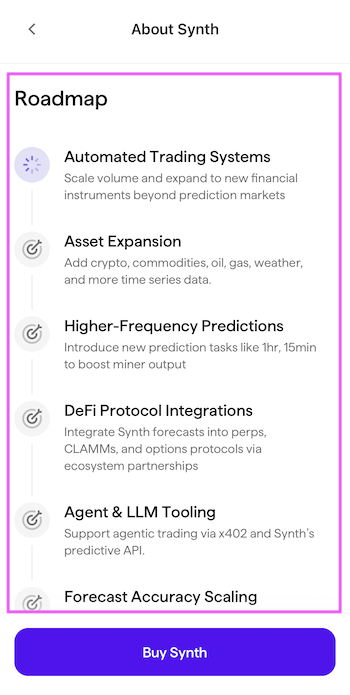
* Added the ability for subnet owners to specify whether a roadmap item on their subnet profile page is “completed”, “in progress”, or “not started”, and are now showing iconography specific to those statuses.
* Fixed an issue where transactions on the transaction history page “jumped” around unexpectedly due to a conflict in the sorting logic.
* Improved the sporadic issues sometimes seen when switching from light mode to dark mode.
* Made various copy changes for improved consistency.
  {% endupdate %}

{% update date="2025-12-12" %}

## iOS v2.0.10

Fixed an issue with some wallets created in the new TAO.com app needing to be reimported.
{% endupdate %}

{% update date="2025-12-11" %}

## iOS v2.0.9 (launch)

Bittensor Wallet is now TAO.com!

It's the same official non-custodial Bittensor wallet, now with a new look and even more features. Your keys remain private and secure on your device.

The app has been completely redesigned from the ground up to make managing your TAO wallet easier and more enjoyable than ever. Check out these new features:

• Track the price of TAO with real-time USD price data.

• See USD prices throughout the app (default) or tap your wallet balance/toggle the switch in Settings to see everything in TAO.

• Track your portfolio performance over time with beautiful new graphs.

• Trade subnets effortlessly with a brand new trading experience for staking, unstaking, buying, and selling.

• Manage your subnet holdings with enhanced displays featuring beautiful subnet logos, names, and numbers.

• Search subnets instantly with new and comprehensive search features, filters, and subnet descriptions.

• See real-time data about each Bittensor subnet faster than any other TAO stats apps. ;)

• Find hidden subnet gems with comprehensive subnet pages featuring stats, details, and news.

• Protect your wallet by turning on Face ID for secure transactions and wallet locking.<br>

Enjoying TAO.com? A 5-star review helps us grow and supports the Bittensor ecosystem and the TAO token. Follow us on X (formerly Twitter) at @tao\_dot\_com.

We'd love to hear your feedback on the new design! Contact us and submit feedback directly from the Settings page in the app, or via email at <support@TAO.com>.

<br>
{% endupdate %}
{% endupdates %}


# Getting Started


# Downloading the App

Welcome to TAO.com!&#x20;

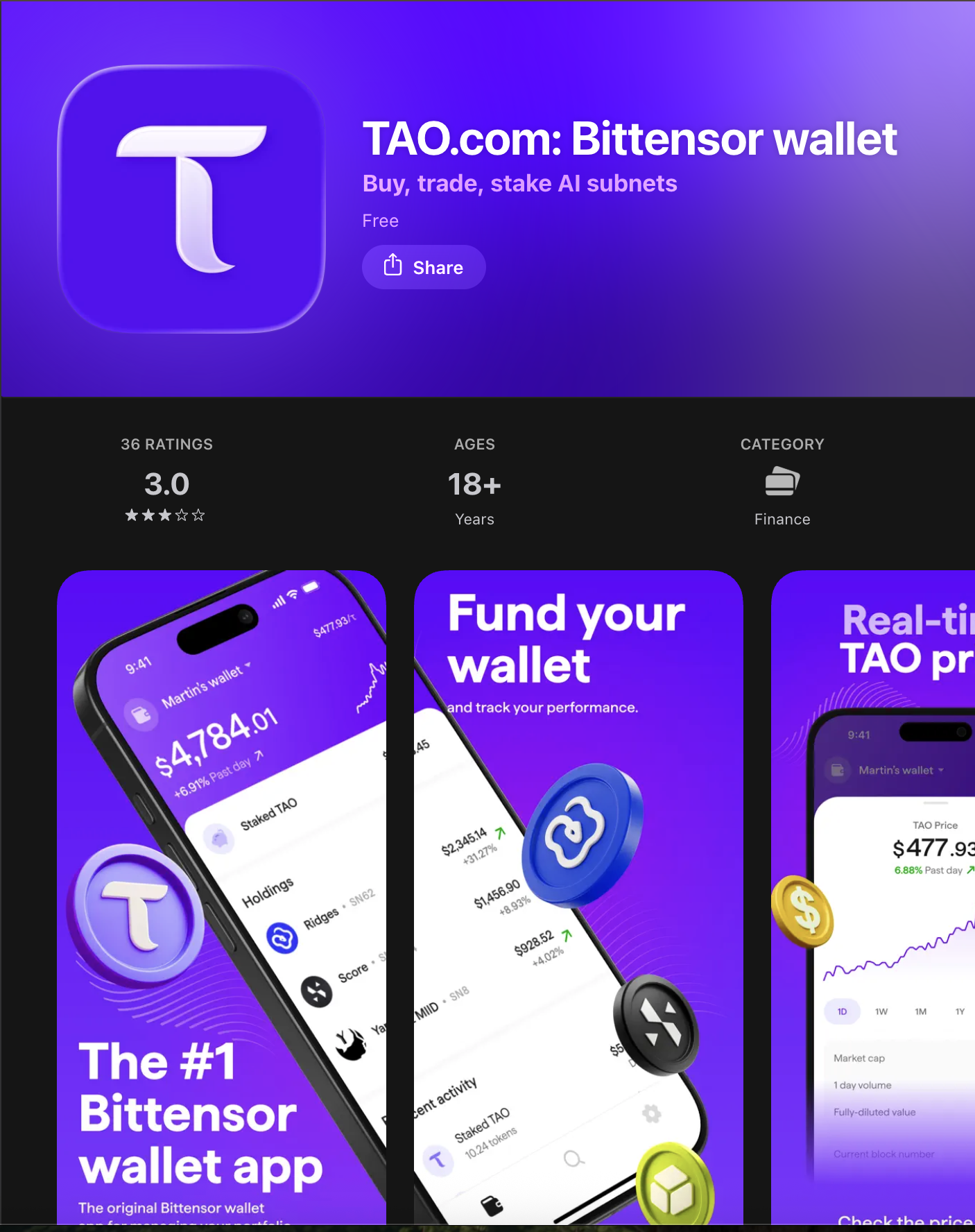
Download the Apple iOS TAO.com app [here](https://apps.apple.com/us/app/tao-com-bittensor-wallet/id6476235156).

Android mobile app coming soon.

<div align="left"><figure><img src="/files/zd9arMtShXcjIZ0z6Amq" alt="" width="375"><figcaption></figcaption></figure></div>


# Adding a Wallet


# Creating a New Wallet


# No Existing Wallet in App

Follow the steps below to create a brand new wallet in the TAO.com app when no other wallet currently exists in the app.

{% stepper %}
{% step %}

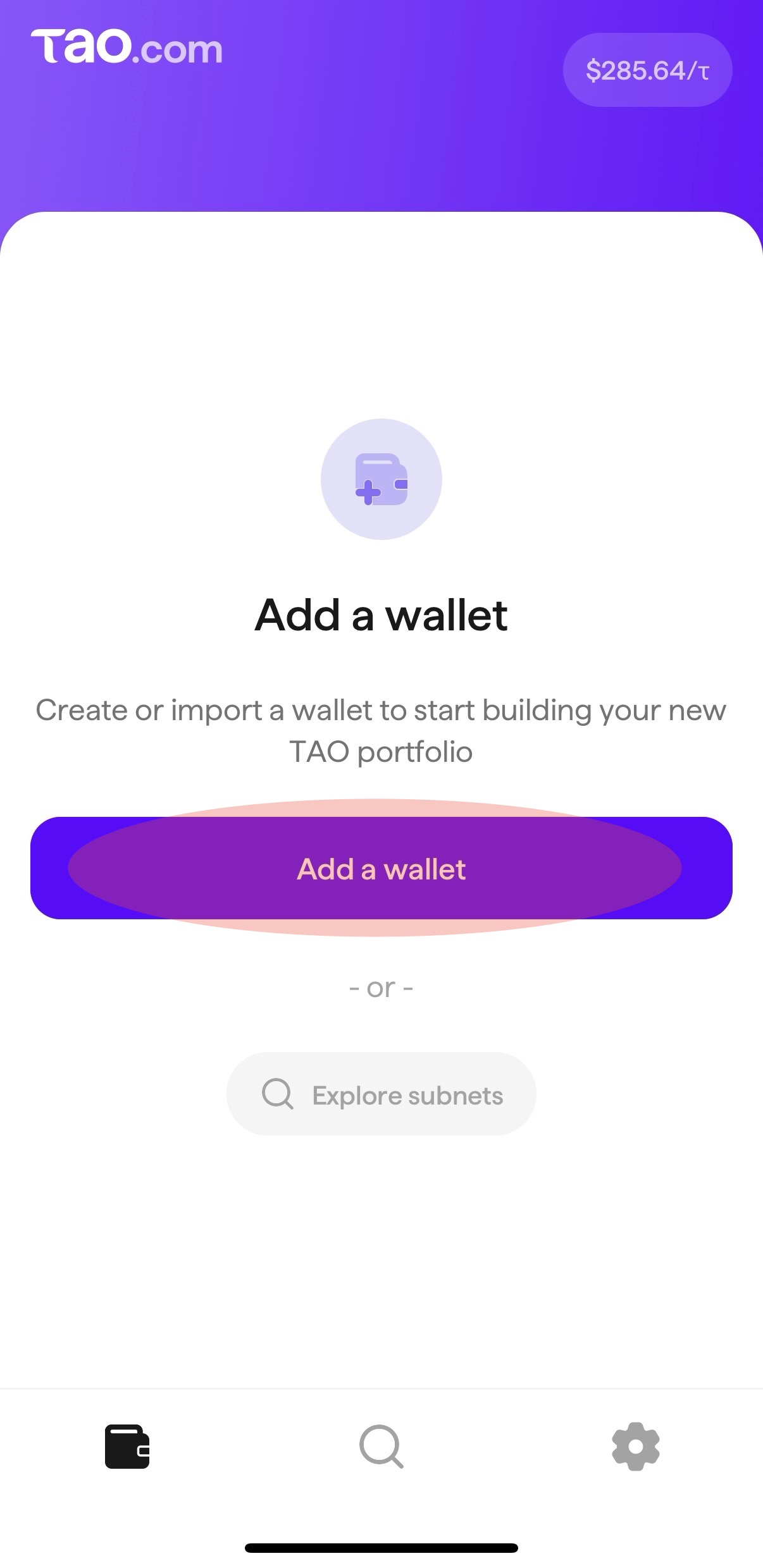
### Open the TAO.com app and tap "Add a wallet"

<div align="left"><figure><img src="/files/76f18XtGAHjf0remj7A3" alt="" width="188"><figcaption></figcaption></figure></div>
{% endstep %}

{% step %}

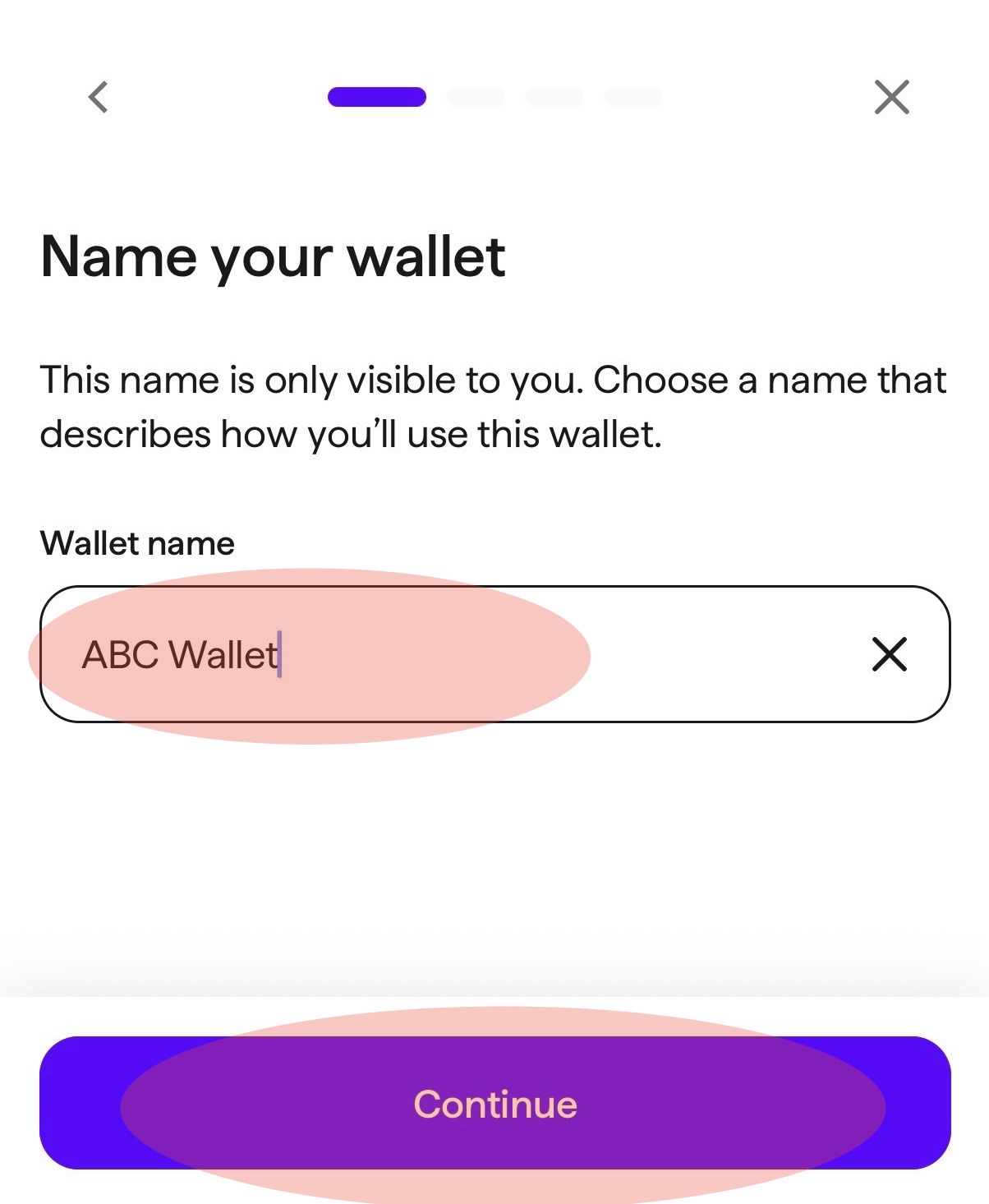
### Name your wallet

Select and enter a name for your wallet. Tap "Continue".

<div align="left"><figure><img src="/files/lgjCQCjCy7QlXLeo41rU" alt="" width="188"><figcaption></figcaption></figure></div>
{% endstep %}

{% step %}

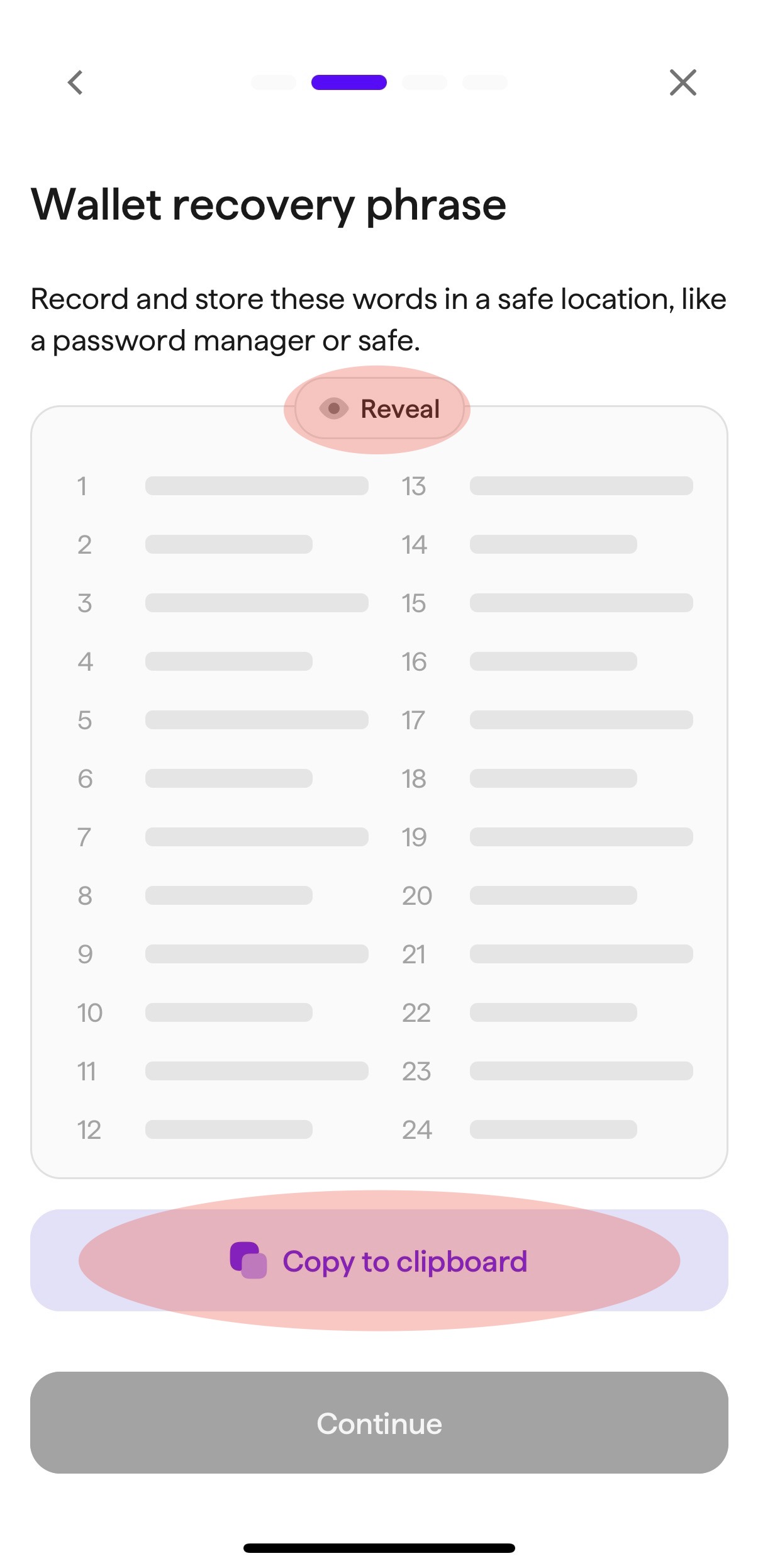
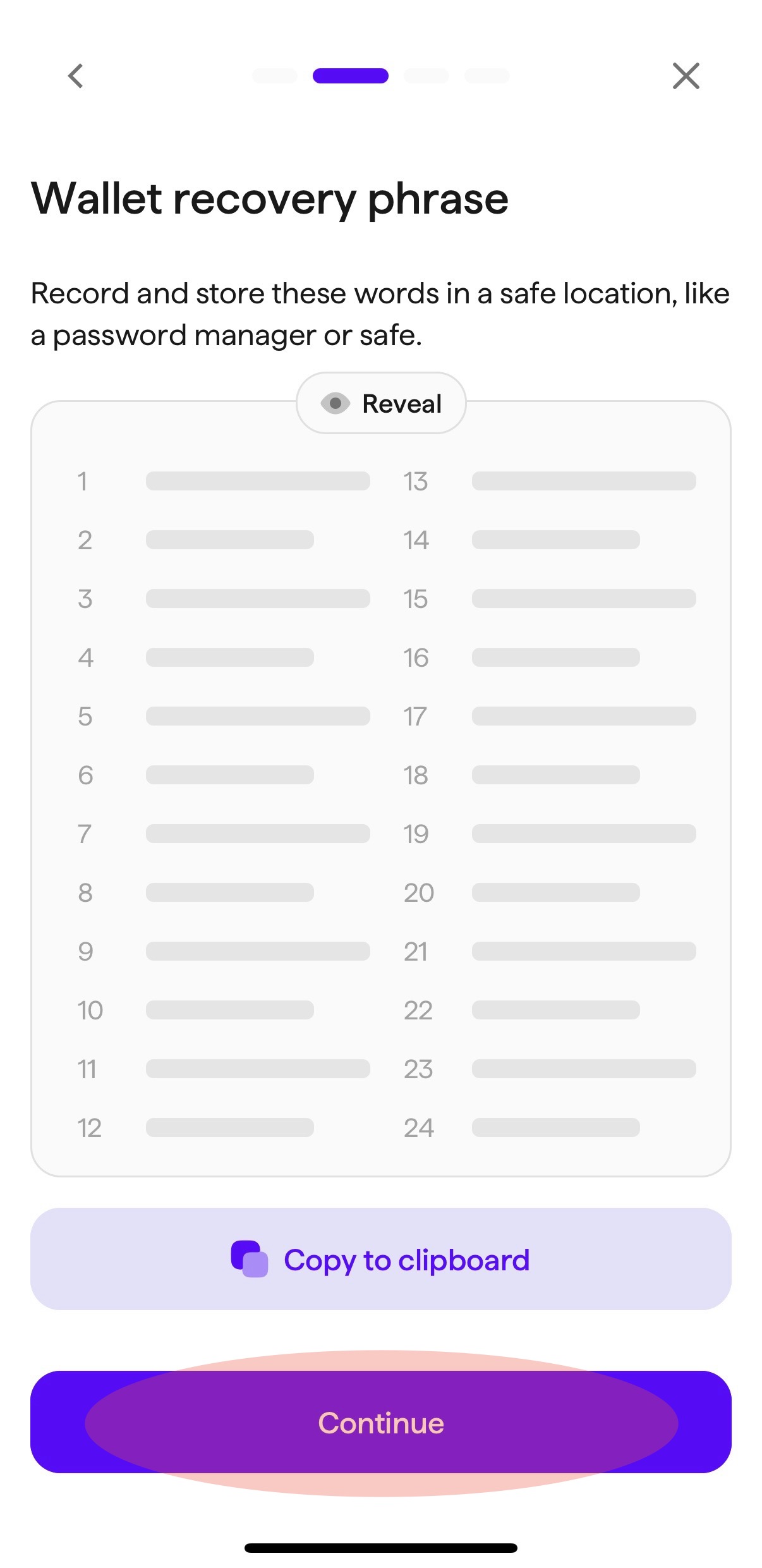
### Wallet recovery phrase

Tap "Reveal" to reveal the unique 24-phrase mnemonic seed for your wallet. When the seed is revealed, tap "Copy to clipboard" and paste the phrase in a safe place. The app will allow you 5 minutes after copying to paste the seed phrase elsewhere. Once you have copied the seed phrase, the "Continue" button will activate. After saving your seed phrase, tap "Continue".

Please ensure that you store the full seed phrase as it is your only way to recover your wallet if you forget your password or need to add or re-import the wallet.

<div align="left"><figure><img src="/files/qdUnGXVAurmrcBTxIqcW" alt="" width="188"><figcaption></figcaption></figure></div>

<div align="left"><figure><img src="/files/MzPOQYyzTQ8bwPKMQyOu" alt="" width="188"><figcaption></figcaption></figure></div>
{% endstep %}

{% step %}

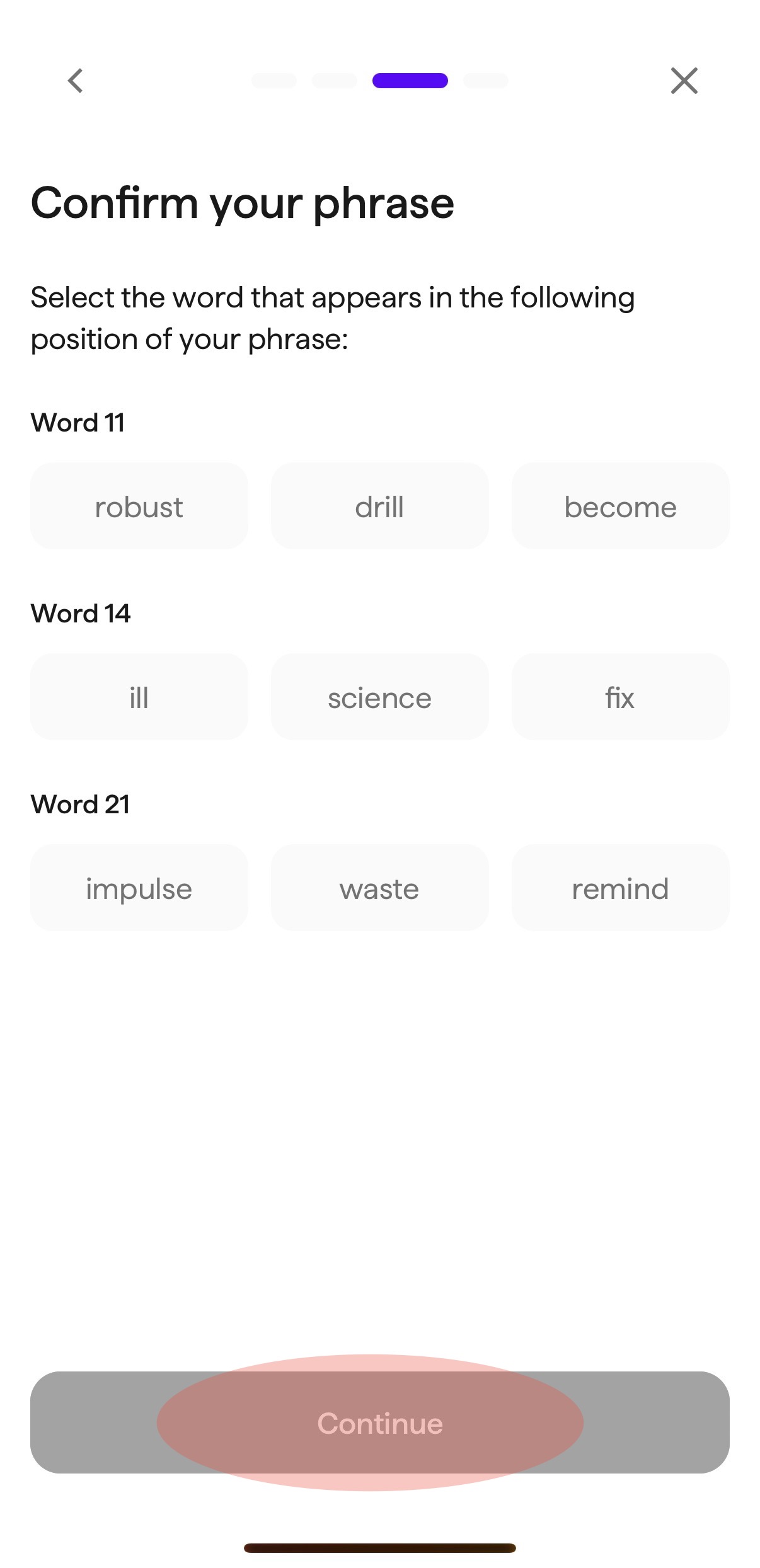
### Confirm your phrase

After you click "Continue", you will be asked to confirm your phrase by selecting the appropriate words to ensure that you have saved it properly. Once the correct set of words is selected, the "Continue" button will activate. Tap "Continue".

<div align="left"><figure><img src="/files/yTzAphXpL2swYVPf7zww" alt="" width="188"><figcaption></figcaption></figure></div>
{% endstep %}

{% step %}

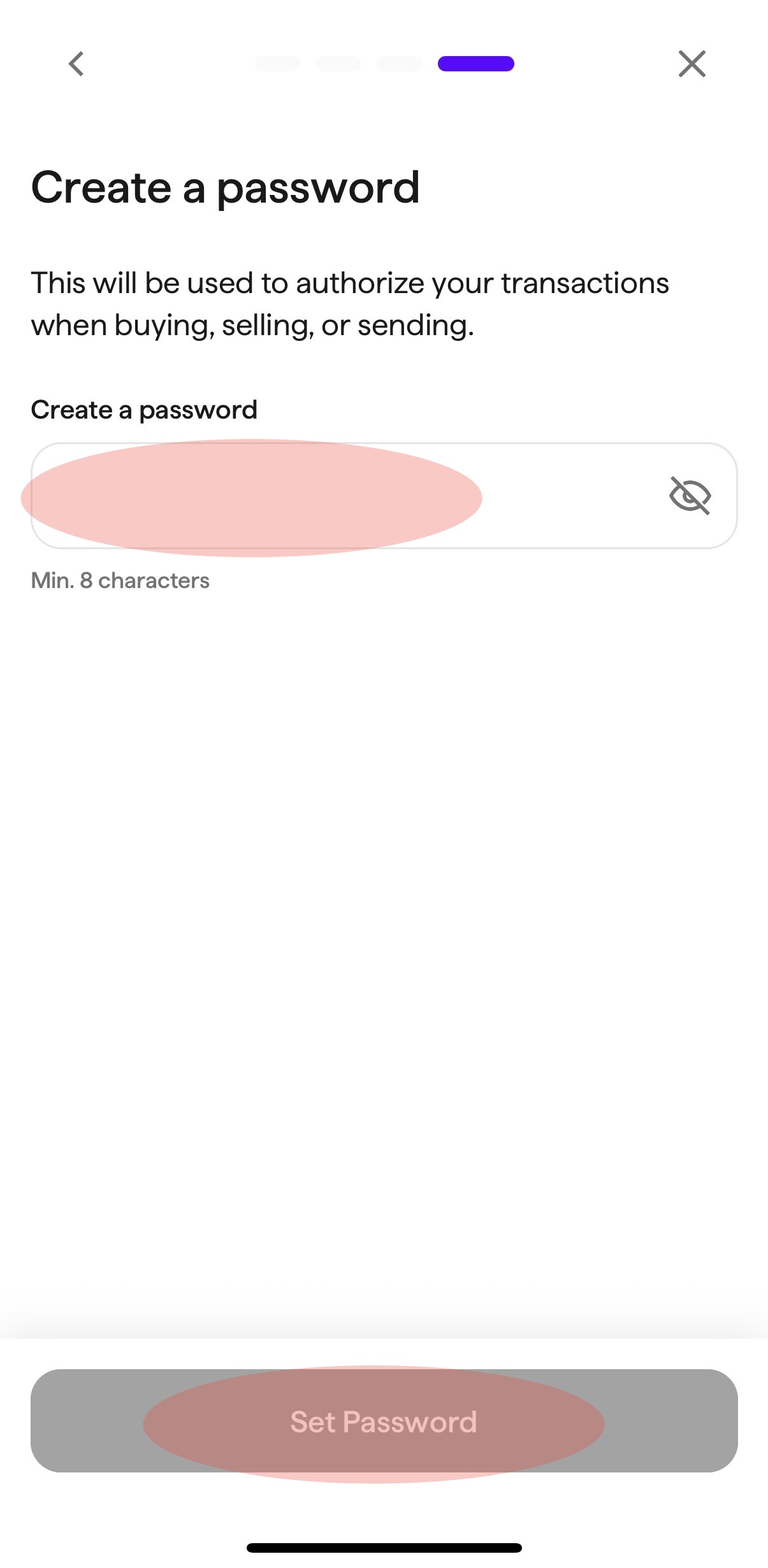
### Create a password

Select and enter a secure password. Once a password is entered, the "Set Password" button will activate. Tap "Set Password".

<div align="left"><figure><img src="/files/P6loffKIR54PwxfdAoNe" alt="" width="188"><figcaption></figcaption></figure></div>
{% endstep %}

{% step %}

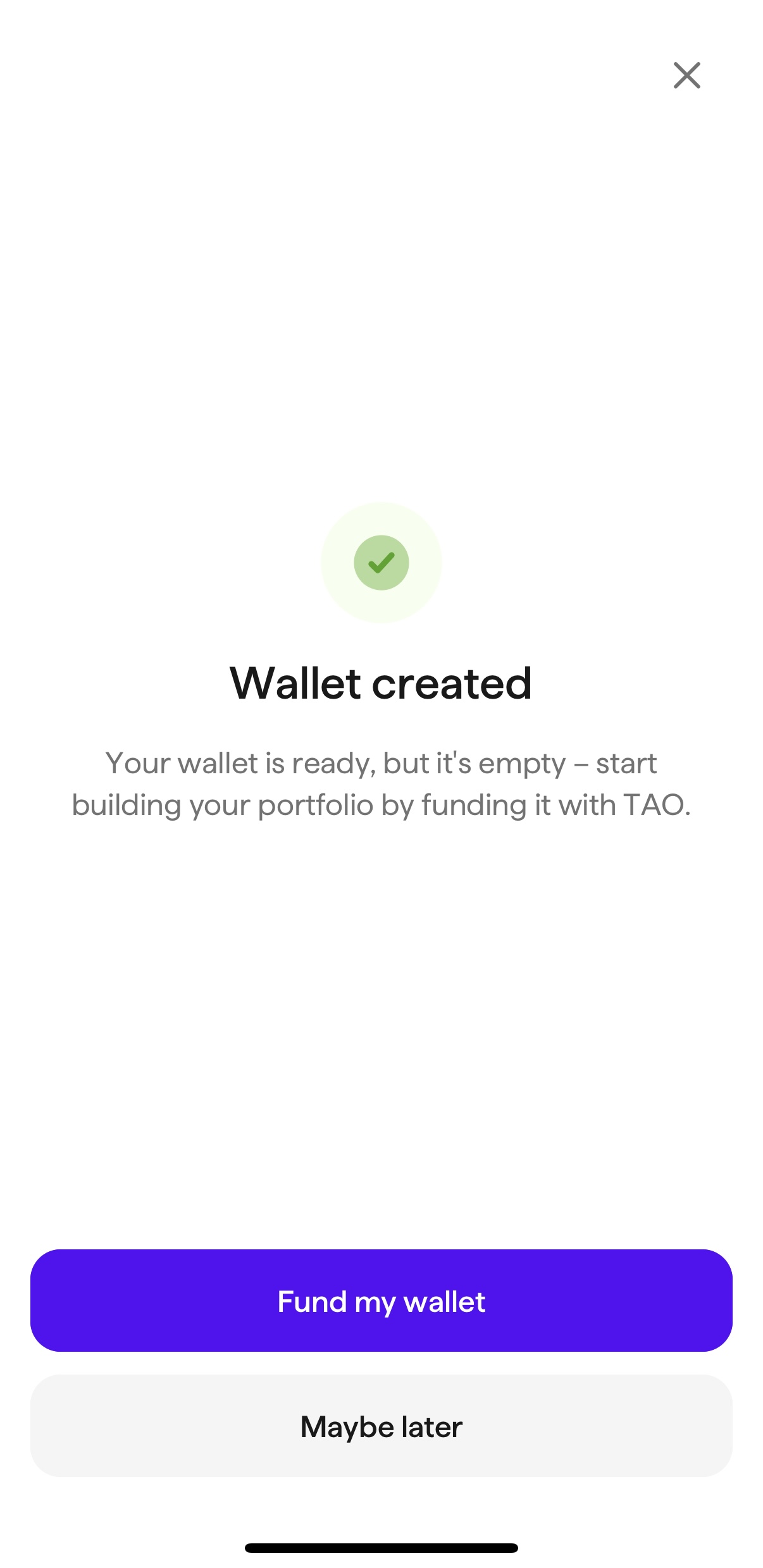
### Wallet created

Your new wallet has been created and is now ready for funding.

<div align="left"><figure><img src="/files/08dtTd02F1ICTNMMzjXW" alt="" width="188"><figcaption></figcaption></figure></div>
{% endstep %}
{% endstepper %}


# A Wallet Exists in App

Follow the steps below to create a brand new wallet in the TAO.com app when no other wallet currently exists in the app

{% stepper %}
{% step %}

### Open the TAO.com app

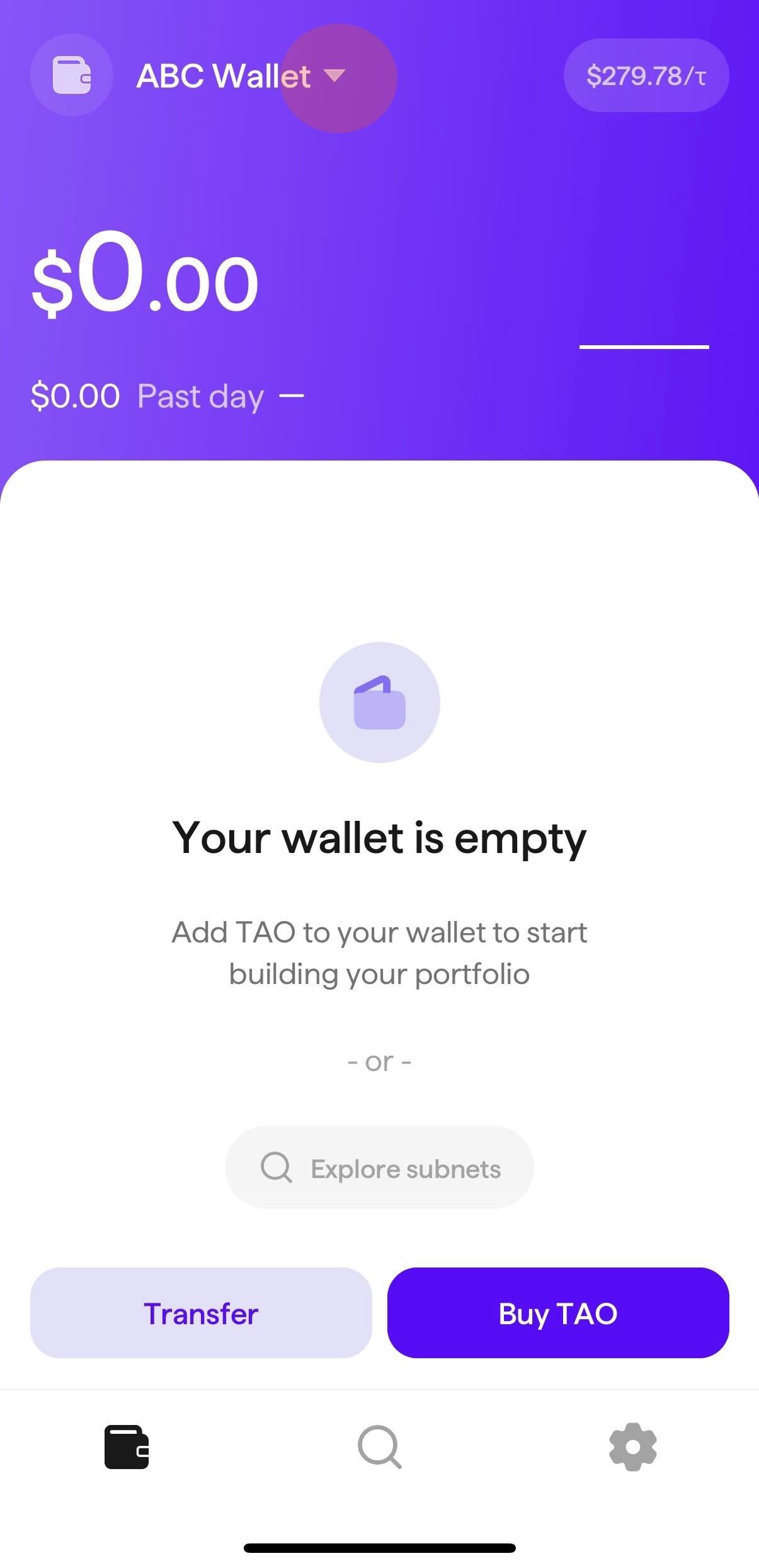
Open the app. If you have at least one wallet already created/imported in the app, you will see a drop down carrot next to your wallet name in the top left corner. Tap on this down carrot to toggle the wallet menu.

<div align="left"><figure><img src="/files/TzqUSSI9iqcbYXmmm36v" alt="" width="188"><figcaption></figcaption></figure></div>
{% endstep %}

{% step %}

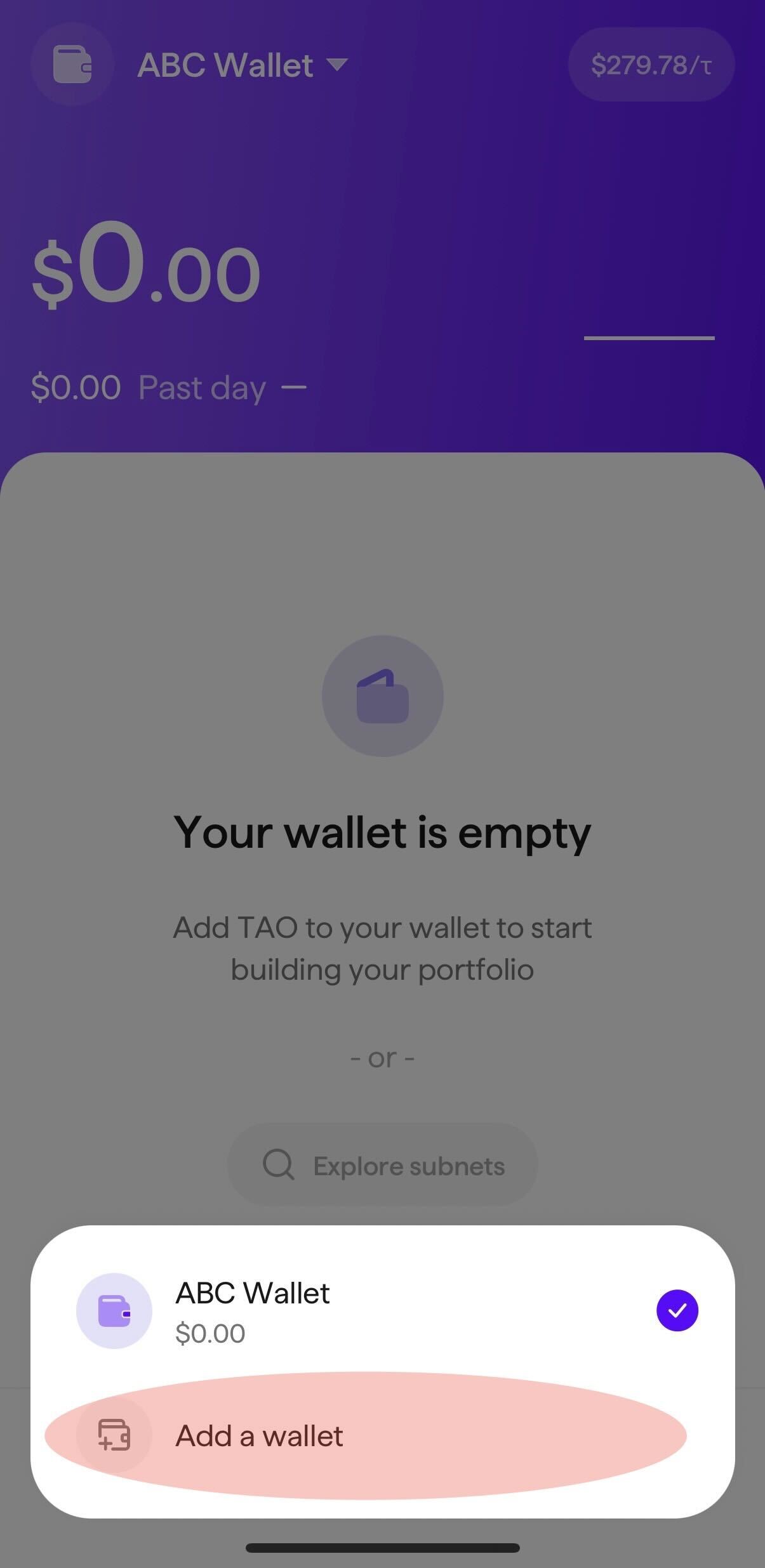
### Tap "Add a wallet"

<div align="left"><figure><img src="/files/QbV4SGqIDfSqQIG3dGfU" alt="" width="188"><figcaption></figcaption></figure></div>
{% endstep %}

{% step %}

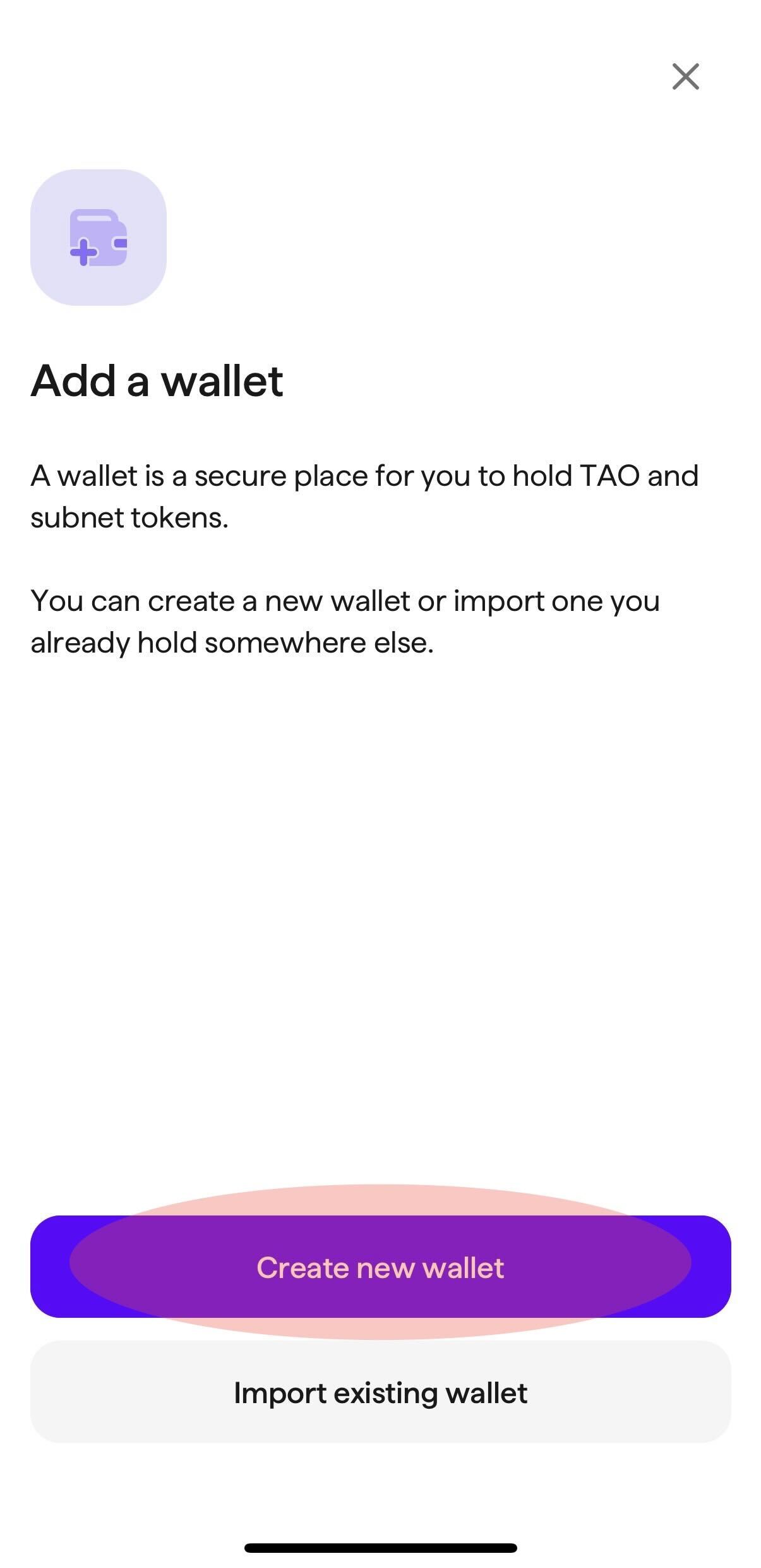
### Tap "Create new wallet"

<div align="left"><figure><img src="/files/neLxUiSfKzGvjrcNBAMQ" alt="" width="188"><figcaption></figcaption></figure></div>
{% endstep %}

{% step %}

### Name your wallet

Select and enter a name for your wallet. Tap "Continue".

<div align="left"><figure><img src="/files/lgjCQCjCy7QlXLeo41rU" alt="" width="188"><figcaption></figcaption></figure></div>
{% endstep %}

{% step %}

### Wallet recovery phrase

Tap "Reveal" to reveal the unique 24-phrase mnemonic seed for your wallet. When the seed is revealed, tap "Copy to clipboard" and paste the phrase in a safe place. The app will allow you 5 minutes after copying to paste the seed phrase elsewhere. Once you have copied the seed phrase, the "Continue" button will activate. After saving your seed phrase, tap "Continue".

Please ensure that you store the full seed phrase as it is your only way to recover your wallet if you forget your password or need to add or re-import the wallet.

<div align="left"><figure><img src="/files/qdUnGXVAurmrcBTxIqcW" alt="" width="188"><figcaption></figcaption></figure></div>

<div align="left"><figure><img src="/files/MzPOQYyzTQ8bwPKMQyOu" alt="" width="188"><figcaption></figcaption></figure></div>
{% endstep %}

{% step %}

### Confirm your phrase

After you click "Continue", you will be asked to confirm your phrase by selecting the appropriate words to ensure that you have saved it properly. Once the correct set of words is selected, the "Continue" button will activate. Tap "Continue".

<div align="left"><figure><img src="/files/yTzAphXpL2swYVPf7zww" alt="" width="188"><figcaption></figcaption></figure></div>
{% endstep %}

{% step %}

### Create a password

Select and enter a secure password. Once a password is entered, the "Set Password" button will activate. Tap "Set Password".

<div align="left"><figure><img src="/files/P6loffKIR54PwxfdAoNe" alt="" width="188"><figcaption></figcaption></figure></div>

{% endstep %}

{% step %}

### Wallet created

Your new wallet has been created and is now ready for funding.

<div align="left"><figure><img src="/files/08dtTd02F1ICTNMMzjXW" alt="" width="188"><figcaption></figcaption></figure></div>
{% endstep %}
{% endstepper %}


# Importing an Existing Wallet


# Importing a Wallet with a Recovery Phrase

Follow the steps below to import an existing Bittensor wallet into the TAO.com app using your recovery phrase (sometimes also referred to as "seed phrase" or "mnemonic seed").

{% stepper %}
{% step %}

### Open the app

{% endstep %}

{% step %}

### Tap "Add a wallet"

{% endstep %}

{% step %}

### Tap "Import existing wallet"

{% endstep %}

{% step %}

### Tap "Use recovery phrase"

{% endstep %}

{% step %}

### Select option for entering your recovery phrase/mnemonic seed

If copying and pasting, navigate to your saved seed on your phone and copy it. After copying, navigate back to the app and tap "Paste from clipboard". If entering manually, tap "Enter manually" and make sure to select the appropriate length of your phrase at the top of the screen before entering each word of your phrase in the correct order and with the correct spelling.
{% endstep %}

{% step %}

### Name your wallet and tap "Continue"

If the seed phrase in the previous screen is entered correctly, you will be navigated to enter a wallet name. This name is only viisble to you.
{% endstep %}

{% step %}

### Create a password and tap "Set password"

{% endstep %}

{% step %}

### Wallet will import, and your balance in the wallet will now show on the home screen.

{% endstep %}
{% endstepper %}


# Importing a Wallet Using JSON Backup

Follow the steps below to import an existing Bittensor wallet into the TAO.com app using a JSON backup of your wallet from the Chrome Bittensor Wallet extension.

{% stepper %}
{% step %}

### Download the QR code for your wallet&#x20;

In the Chrome Bittensor Wallet extension on your computer, click the three line accordion and navigate to "Settings". Scroll to the bottom and click on "Export Account". Enter your password and click "Generate QR Code". A QR code will appear.
{% endstep %}

{% step %}

### Open the TAO.com app

{% endstep %}

{% step %}

### Tap "Add a wallet"

{% endstep %}

{% step %}

### Tap "Import existing wallet"

{% endstep %}

{% step %}

### Tap "Scan QR code"

A QR scanner will appear. Scan the QR code generated in step 1 above.
{% endstep %}

{% step %}

### Enter the wallet password and tap "Complete import"

{% endstep %}
{% endstepper %}


# Importing a Wallet Using a QR Code

Follow the steps below to import an existing Bittensor wallet into the TAO.com app using a JSON export of your wallet from the Chrome Bittensor Wallet extension.

{% stepper %}
{% step %}

### Download the JSON file for your wallet&#x20;

In the Chrome Bittensor Wallet extension, click the three line accordion and navigate to "Settings". Scroll to the bottom and click on "Export Account". Enter your password and click "Download JSON" and then "DOWNLOAD FILE" at the bottom of the screen.
{% endstep %}

{% step %}

### Open the TAO.com app

{% endstep %}

{% step %}

### Tap "Add a wallet"

{% endstep %}

{% step %}

### Tap "Import existing wallet"

{% endstep %}

{% step %}

###

{% endstep %}

{% step %}

### Enter the wallet password and tap "Complete import"

{% endstep %}
{% endstepper %}


# Funding Your Wallet


# Buying TAO

Follow the steps below to fund your wallet with TAO using fiat currency via Coinbase, if available in your jurisdiction.

{% stepper %}
{% step %}

### Open the App or Tap the Wallet Icon

The wallet icon is located on the left side of the bottom navigation bar.&#x20;
{% endstep %}

{% step %}

### Tap "Buy TAO"

{% endstep %}

{% step %}

### Tap "Pay with Coinbase"

Coming soon: the option to connect a non-TAO crypto wallet for funding your TAO.com wallet.
{% endstep %}

{% step %}

### Enter the Amount to Fund

Enter the $ amount OR enter the TAO amount you'd like to deposit into your wallet. The TAO or $ amount, will populate in the field, respectively.

Additionally, you may select a pre-populated amount of $20, $50, or $100 at the bottom of the screen.
{% endstep %}

{% step %}

### Tap "Pay on Coinbase"

{% endstep %}

{% step %}

### Select Payment Option

**A.** Tap "Pay with Apple Pay", in jurisdictions where accepted, to pay via Apple Pay. You will need to enter your phone number and verify your number with a 6-digit code before completing the transaction.

**B.** Tap "Pay with coinbase" to connect your coinbase account for payment. You will need to login to your Coinbase account to complete the transaction.

**C.** Enter your debit card at the bottom of the screen to pay. You will need to provide your card information including number, expiration date, and CVC as well as the billing address linked to the card before tapping "Continue" to complete the transaction.
{% endstep %}

{% step %}

### Wallet is Funded

Once any of the payment options in step 6 are completed, your app home screen will reflect the TAO funded into your wallet.
{% endstep %}
{% endstepper %}


# Transferring TAO

Follow the steps below to transfer TAO to another Bittensor wallet.

{% stepper %}
{% step %}

### Open the App or Tap the Wallet Icon

The wallet icon is located on the left side of the bottom navigation bar.&#x20;

**Note**: Your wallet must contain TAO in it to be able to perform a transfer to another wallet. If you need to fund your wallet first, please refer to this guide: [Buying TAO](/documentation/funding-your-wallet/buying-tao)
{% endstep %}

{% step %}

### Tap "Transfer"

**A.** Tap "Transfer in" to copy your wallet address to use for making a transfer to it or to send to someone else to make a transfer to you.

**B.** Tap "Transfer out" to transfer from your wallet to another Bittensor wallet address.
{% endstep %}

{% step %}

### Select or Enter the Transfer to Wallet

For a Transfer out transaction, in the "Transfer TAO" screen, select one of your own wallets to transfer to under the "Between my wallets" header OR tap "Enter or scan and address".

If you tapped "Enter or scan an address", then enter the wallet address, tap "Paste" to paste it in if you had it copied to your clipboard, or scan someone's wallet QR code.
{% endstep %}

{% step %}

### Enter Wallet Address or Scan QR Code

{% endstep %}

{% step %}

### Enter the Amount to Transfer

Enter the $ amount OR enter the TAO amount you'd like to transfer to another wallet. The TAO or $ amount, will populate in the field, respectively.

Additionally, you may select "Send maximum amount" at the bottom of the screen to send the most allowable amount from your balance after transaction fees to the selected wallet.
{% endstep %}
{% endstepper %}


# Staking & Unstaking TAO


# Staking TAO

{% content-ref url="/pages/GcxElNaOAJrP4ptVFJ0C" %}
[When No TAO is Currently Staked](/documentation/staking-and-unstaking-tao/staking-tao/when-no-tao-is-currently-staked)
{% endcontent-ref %}

{% content-ref url="/pages/e8DBKGJMtepgdcY7iwmD" %}
[When TAO Already Staked](/documentation/staking-and-unstaking-tao/staking-tao/when-tao-already-staked)
{% endcontent-ref %}


# When TAO Already Staked

Follow the steps below to stake TAO to the Root subnet when you already have TAO staked to Root.

{% stepper %}
{% step %}

### Open the App or Tap the Wallet Icon

The wallet icon is located on the left side of the bottom navigation bar.&#x20;
{% endstep %}

{% step %}

### Tap on "Staked TAO"

OR tap the toggle for "Available balance: $X.XX to bring up the "Stake TAO" screen and skip to step 4 below.
{% endstep %}

{% step %}

### Tap "Stake more"

{% endstep %}

{% step %}

### Select Wallet and Enter Amount to Stake&#x20;

Select the wallet that you would like to use to stake to Root. Enter in USD the amount that you would like to stake. Please note that the minimum allowable stake via the app is 0.002 TAO.
{% endstep %}

{% step %}

### Tap "Review transaction"

Ensure that all details are accurate for the stake operation. If you will have a balance of less than 0.01 TAO following the stake operation, a warning message will show. The warning message lets you know that you may need to fund your wallet with additional TAO to be able to unstake to cover any fees associated with any future unstaking operation.
{% endstep %}

{% step %}

### Tap Stake TAO

Please note that this operation may take several minutes to complete.
{% endstep %}
{% endstepper %}


# When No TAO is Currently Staked

Follow the steps below to stake TAO to the Root subnet when you do not already have TAO staked to Root.

{% stepper %}
{% step %}

### Open the App or Tap the Wallet Icon

The wallet icon is located on the left side of the bottom navigation bar.&#x20;
{% endstep %}

{% step %}

### If No Funds in Wallet, Buy TAO&#x20;

If you do not have any TAO in your wallet to stake, please follow the steps in the [Funding your Wallet](/documentation/funding-your-wallet) support section first.

If you have funds available, please skip to step #3 below.
{% endstep %}

{% step %}

### Tap "Stake more"

{% endstep %}

{% step %}

### Select Wallet and Enter Amount to Stake&#x20;

Select the wallet that you would like to use to stake to Root. Enter in USD the amount that you would like to stake. Please note that the minimum allowable stake via the app is 0.002 TAO.
{% endstep %}

{% step %}

### Tap "Review transaction"

Ensure that all details are accurate for the stake operation. If you will have a balance of less than 0.01 TAO following the stake operation, a warning message will show. The warning message lets you know that you may need to fund your wallet with additional TAO to be able to unstake to cover any fees associated with any future unstaking operation.
{% endstep %}

{% step %}

### Tap Stake TAO

Please note that this operation may take several minutes to complete.
{% endstep %}
{% endstepper %}


# Unstaking TAO

Follow the steps below to unstake TAO from the Root subnet.

{% stepper %}
{% step %}

### Open App

The wallet icon is located on the left side of the bottom navigation bar.&#x20;
{% endstep %}

{% step %}

### Tap on "Staked TAO"

<div align="left"><figure><img src="/files/UQMsWxdZnQ1JDJkM5lso" alt="" width="188"><figcaption></figcaption></figure></div>
{% endstep %}

{% step %}

### Tap on "Unstake"

<div align="left"><figure><img src="/files/lhcUDAmaZBuwCSrwSCV3" alt="" width="188"><figcaption></figcaption></figure></div>
{% endstep %}

{% step %}

### Enter Amount to Unstake

Enter the amount you'd like to unstake from Root in USD or tap "Unstake maximum". Please note that your available balance must be enough to cover the fees required to perform the unstake operation.
{% endstep %}

{% step %}

### Tap "Review transaction"

{% endstep %}

{% step %}

### Review the Transaction Details

{% endstep %}

{% step %}

### Confirm the Transaction with Credentials

Tap "Confirm with Face ID" or enter your password and then tap "Confirm unstake".

Please note that this operation may take several minutes to complete.
{% endstep %}
{% endstepper %}


# Exploring Subnets

Follow the steps below to view more information about individuals subnets in the Bittensor ecosystem.


# Viewing a Subnet


# Via Your Hold

Follow the steps below to view more information about a subnet whose tokens you hold via the Holdings section of the app.

{% stepper %}
{% step %}

### Open the App or Tap the Wallet Icon

The wallet icon is located on the left side of the bottom navigation bar.&#x20;
{% endstep %}

{% step %}

### Navigate to the "Holdings" Section

On the home screen, locate the "Holdings" section to view all of the subnets whose tokens you hold.
{% endstep %}

{% step %}

### Select a Subnet&#x20;

Tap on the subnet name for which you would like to view more information.
{% endstep %}

{% step %}

### Navigate to the Subnet Profile Page

From within the "Hold balance" screen, tap the subnet name at the bottom of the screen to navigate to its profile page.
{% endstep %}

{% step %}

### Explore the Subnet

From within the subnet's profile page, you can view financial stats for the subnet, About info including what the subnet does, who its operated by, & its website and social media pages, and latest news.
{% endstep %}
{% endstepper %}


# Via General Search

Follow the steps below to view more information about a subnet via the general search feature.

{% stepper %}
{% step %}

### Tap the Magnifying Glass in the Bottom Menu Bar

{% endstep %}

{% step %}

### Search via Search Bar

Once in the search page, use the search bar at the top of the page to search for a particular subnet by its subnet number or its name. As you type, matching subnets will appear in the search results below the search bar.
{% endstep %}

{% step %}

### Search via Filters and Scrolling

Once in the search page, you can also explore subnets by utilizing the built-in filters which include:

* Emissions
* Market cap
* Token price
* Price change
* Buy volume
* Name
* Subnet number

After tapping the filter you'd like, make sure to also select the order that you'd like the subnets to be listed based on the filter selected (i.e. from Highest first <i class="fa-down">:down:</i>)
{% endstep %}
{% endstepper %}


# Buying & Selling Subnet Tokens


# Buying Subnet Tokens


# From General Search

Follow the steps below to purchase tokens of a subnet for which you currently have no hold.

{% stepper %}
{% step %}

### Open the App

{% endstep %}

{% step %}

### Search Subnet

Locate the subnet you'd like to purchase tokens in by using the app's general search feature. Please see guidance on locating a subnet [Via General Search](/documentation/exploring-subnets/viewing-a-subnet/via-general-search).
{% endstep %}

{% step %}

### Purchase tokens

Once you're in the profile page for the subnet you'd like to purchase tokens in, tap "Buy \[Subnet Name]"
{% endstep %}

{% step %}

### Enter Amount to Purchase

Enter the TAO amount or the token amount that you would like to purchase. The app will automatically convert the amount entered to respective tokens or TAO.
{% endstep %}

{% step %}

### Tap "Review transaction"

{% endstep %}

{% step %}

### Review Transaction Details

{% endstep %}

{% step %}

### Confirm Purchase with Credentials

Tap "Confirm with Face ID" or enter your password and then tap "Confirm buy".&#x20;

Please note that this operation may take several minutes to complete.
{% endstep %}
{% endstepper %}


# From Your Hold

Follow the steps below to purchase tokens of a subnet for which you currently hold tokens.

{% stepper %}
{% step %}

### Open the App or Tap the Wallet Icon

The wallet icon is located on the left side of the bottom navigation bar.&#x20;
{% endstep %}

{% step %}

### Navigate to the "Holdings" Section

On the home screen, locate the "Holdings" section to view all of the subnets whose tokens you hold.
{% endstep %}

{% step %}

### Select a Subnet&#x20;

Tap on the subnet name for which you would like to view more information.
{% endstep %}

{% step %}

### Tap "Buy"

{% endstep %}

{% step %}

### Enter Amount to Sell

Enter the tokens or TAO value of the amount you'd like to buy OR tap "Buy maximum" to buy the most tokens you can with your current available balance. The app will automatically convert the amount entered to respective TAO or tokens.
{% endstep %}

{% step %}

### Tap "Review transaction"

{% endstep %}

{% step %}

### Review Transaction Details

{% endstep %}

{% step %}

### Confirm Purchase with Credentials

Tap "Confirm with Face ID" or enter your password and then tap "Confirm buy".&#x20;

Please note that this operation may take several minutes to complete.
{% endstep %}
{% endstepper %}


# Selling Subnet Tokens

Follow the steps below to sell subnet tokens you hold.

{% stepper %}
{% step %}

### Open the App

{% endstep %}

{% step %}

### Navigate to the "Holdings" Section

On the home screen, locate the "Holdings" section to view all of the subnets whose tokens you hold.
{% endstep %}

{% step %}

### Select a Subnet&#x20;

Tap on the subnet name for which you would like to view more information.
{% endstep %}

{% step %}

### Tap "Sell"

{% endstep %}

{% step %}

### Enter Amount to Sell

Enter the tokens or TAO value of the amount you'd like to sell OR tap "Sell maximum" to sell your entire hold. The app will automatically convert the amount entered to respective TAO or tokens.
{% endstep %}

{% step %}

### Tap "Review transaction"

{% endstep %}

{% step %}

### Review Transaction Details

{% endstep %}

{% step %}

### Confirm Purchase with Credentials

Tap "Confirm with Face ID" or enter your password and then tap "Confirm sell".&#x20;

Please note that this operation may take several minutes to complete.
{% endstep %}
{% endstepper %}


# Managing your Portfolio


# Overall Balance

Follow the steps below to view more details about your overall balance.

## Change Between USD and TAO When Viewing Balance

{% stepper %}
{% step %}

### Open the App or Tap the Wallet Icon

The wallet icon is located on the left side of the bottom navigation bar.&#x20;
{% endstep %}

{% step %}

### Change Between TAO and USD for your Balance

Tap the USD value of the your portfolio (underneath your wallet name) in the wallet screen. The value will change to display in TAO. Tap the TAO value to change back to a USD balance view.

<div align="left"><figure><img src="/files/wt216t870zf9saBibec3" alt="" width="375"><figcaption></figcaption></figure></div>
{% endstep %}
{% endstepper %}

## View Portfolio Chart

{% stepper %}
{% step %}

### Open the App or Tap the Wallet Icon

The wallet icon is located on the left side of the bottom navigation bar.&#x20;
{% endstep %}

{% step %}

### View your Portfolio's Chart&#x20;

Tap the chart outline on the right side of the wallet screen to open your portfolio's chart

<div align="left"><figure><img src="/files/lGw6xHj1RzbW8hrmJfSC" alt="" width="375"><figcaption></figcaption></figure></div>
{% endstep %}

{% step %}

### Toggle Between Time Periods

Once in the chart view, you have the option to view your portfolio's performance by 1 day, 1 week, 1 month, 1 year, and all time. You can also slide your finger across the chart to view data points for a specific day/time.

<div align="left"><figure><img src="/files/G14OyEvbuPOyN3EHlAep" alt="" width="375"><figcaption></figcaption></figure></div>
{% endstep %}
{% endstepper %}


# Staked Balance

Follow the steps below to view more details about your staked balance.

{% stepper %}
{% step %}

### Open the App or Tap the Wallet Icon

The wallet icon is located on the left side of the bottom navigation bar.&#x20;
{% endstep %}

{% step %}

### Tap "Staked TAO"

{% endstep %}

{% step %}

### View your Staked TAO Chart and Other Stats

Once in the "Staked TAO" screen, you will have the ability to view a chart showing all time performance of your staked TAO in USD or TAO.&#x20;

To toggle between the USD and TAO views, tap the staked TAO balance.&#x20;

On this screen, you will also be able to view the average APY you are earning from your staked TAO, the percentage of your portfolio balance that consists of staked TAO, as well as how long you are holding staked TAO for.

<div align="left"><figure><img src="/files/XeKvrm87PdPlSHKEk5Y4" alt="" width="375"><figcaption></figcaption></figure></div>

{% endstep %}
{% endstepper %}


# Subnet Holdings


# Via Your Wallet

Follow the steps below to view more details about your subnet holdings via your wallet.

{% stepper %}
{% step %}

### Open the App or Tap the Wallet Icon

The wallet icon is located on the left side of the bottom navigation bar.&#x20;
{% endstep %}

{% step %}

### Navigate to the "Holdings" Section

On the home screen, locate the "Holdings" section to view all of the subnets whose tokens you hold.
{% endstep %}

{% step %}

### Select a Subnet

Tap on the subnet name for which you would like to view more information.
{% endstep %}

{% step %}

### View the Holding Chart and Other Stats for the Subnet

Once in the subnet hold screen, you will have the ability to view a chart showing all time performance of your subnet holding by the TAO or USD value of the Alpha tokens held or simply by the Alpha tokens.

To toggle between the USD and TAO views, tap the hold balance. You can also change the view to show the Alpha tokens owned in the subnet by tapping "Alpha tokens".

On this screen, you will also be able to view the average APY you are earning from your holding in the selected subnet, the percentage of your portfolio balance that consists of this holding, as well as how long you are holding the subnet tokens for.

<div align="left"><figure><img src="/files/nCJfUh9sB4oK0Rsvz1BC" alt="" width="188"><figcaption></figcaption></figure></div>
{% endstep %}

{% step %}

### Edit Your Hold

Tap "Buy" to purchase more tokens of the subnet.

Tap "Sell" to sell tokens that you own in the subnet.
{% endstep %}
{% endstepper %}


# Via a Subnet Profile Page

Follow the steps below to view more details about your subnet holdings via a subnet profile page.

{% stepper %}
{% step %}

### Tap the Magnifying Glass in the Bottom Menu Bar

{% endstep %}

{% step %}

### Search via Search Bar

Once in the search page, use the search bar at the top of the page to search for a particular subnet by its subnet number or its name. As you type, matching subnets will appear in the search results below the search bar.
{% endstep %}

{% step %}

### Select a Subnet to View

Tap the subnet name to view the subnet's profile page.
{% endstep %}

{% step %}

### Tap "Your hold details"

If you own tokens of a particular subnet and you are on the subnet's profile page, a bar will show up at the bottom of the profile page showing your hold and "Edit hold".

Tap "Your hold details" to view the details of your hold and tap "Edit hold" to buy or sell down any of your hold.
{% endstep %}

{% step %}

### View the Holding Chart and Other Stats for the Subnet

Once in the subnet hold screen, you will have the ability to view a chart showing all time performance of your subnet holding by the TAO or USD value of the Alpha tokens held or simply by the Alpha tokens.

To toggle between the USD and TAO views, tap the hold balance. You can also change the view to show the Alpha tokens owned in the subnet by tapping "Alpha tokens".

On this screen, you will also be able to view the average APY you are earning from your holding in the selected subnet, the percentage of your portfolio balance that consists of this holding, as well as how long you are holding the subnet tokens for.

<div align="left"><figure><img src="/files/EJLoLEKQXYM4KEd8edkZ" alt="" width="188"><figcaption></figcaption></figure></div>
{% endstep %}

{% step %}

### Edit Your Hold

Tap "Edit hold" within the subnet profile page.

Tap "Buy" to purchase more tokens of the subnet.

Tap "Sell" to sell tokens that you own in the subnet.

<div align="left"><figure><img src="/files/71nQrU8MEppGUzrghwJm" alt="" width="188"><figcaption></figcaption></figure> <figure><img src="/files/4QNXNjSpZWPWqDOJ5lA2" alt="" width="188"><figcaption></figcaption></figure></div>
{% endstep %}
{% endstepper %}


# Tracking the TAO/USD Price

Follow the steps below to track the TAO/USD price.

{% stepper %}
{% step %}

### Open the App or Tap the Wallet Icon

The wallet icon is located on the left side of the bottom navigation bar.&#x20;
{% endstep %}

{% step %}

### Tap the "$X/t" Price

Once in the app, in the top right corner, you will see a USD price per TAO. Tap this price to open the USD/TAO price chart and other stats.

<div align="left"><figure><img src="/files/aqqYXgwNW5Rg6JiUtJYZ" alt="" width="375"><figcaption></figcaption></figure></div>
{% endstep %}

{% step %}

### Explore the TAO Price Stats

Within this screen, you will be able to view the TAO/USD price for 1 day, 1 week, 1 month, 1 year and all time.

Use your finger to mouse over the chart's data points.

Also in this screen, you can view the current market cap, 1 day trading volume and the fully diluted value of TAO.
{% endstep %}
{% endstepper %}


# Viewing Your Transaction History

Follow the steps below to view your transaction history.

{% stepper %}
{% step %}

### Open the App or Tap the Wallet Icon

The wallet icon is located on the left side of the bottom navigation bar.&#x20;
{% endstep %}

{% step %}

### View Recent Activity

Scroll down in the wallet/home screen to the "Recent activity" section to view the latest three transactions to occur within the wallet.
{% endstep %}

{% step %}

### Tap "View all transactions"&#x20;

To view the entire transaction history of the app, tap "View all transactions" at the bottom of the screen.

The view of all transactions will show the transactions by month as well as the operation performed (Staked, Unstaked, Transferred, Bought, and Sold).
{% endstep %}

{% step %}

### View Individual Transaction Details

Tap on an individual transaction to view more information about that transaction including the transaction ID, the validator (when staking TAO or purchasing of a subnet occurs), network fees, and the date & time of the transaction.&#x20;

For transfer transactions, you can also view and copy the wallet that the transfer came from or went to.
{% endstep %}
{% endstepper %}


# Managing Your Wallet


# Adding a Wallet

Follow the steps below to add a wallet.

## To Add a Wallet

Please view the support for adding a wallet here: [Adding a Wallet](/documentation/getting-started/adding-a-wallet)


# Toggling Between Wallets

Follow the steps below to toggle between wallets.

{% stepper %}
{% step %}

### Open the App

{% endstep %}

{% step %}

### Tap the Wallet Name/Down Carrot

In the top left corner of the screen, tap the wallet name/down carrot to view all of the wallets you have loaded into the TAO.com app.

<div align="left"><figure><img src="/files/3JzGsSgF5Uu31IaZyX9O" alt="" width="375"><figcaption></figcaption></figure></div>
{% endstep %}

{% step %}

### Tap Desired Wallet

Select the desired wallet you'd like displayed in your TAO.com home screen from the list of wallets that pops up at the bottom of the screen.

<div align="left"><figure><img src="/files/8QJIAeWei2lKmI5nEOuh" alt="" width="375"><figcaption></figcaption></figure></div>
{% endstep %}
{% endstepper %}


# Editing Wallet Settings

coming soon.


# Removing a Wallet

Follow the steps below to remove a wallet from the app.

{% stepper %}
{% step %}

### Open the App

{% endstep %}

{% step %}

### Tap the Settings Cogwheel

Locate and tap the settings cogwheel at the bottom right of the screen.

<div align="left"><figure><img src="/files/qOVcZo4pcbhgv06Vvt2n" alt="" width="188"><figcaption></figcaption></figure></div>
{% endstep %}

{% step %}

### Tap the Wallet You'd Like to Remove

{% endstep %}

{% step %}

### Tap "Remove wallet"

Wallet will be deleted from your TAO.com app.
{% endstep %}
{% endstepper %}


# Managing App Settings


# Toggling your Currency


# Via the Settings

Follow the steps below to switch between TAO and USD views in the app via the Settings screen.

{% stepper %}
{% step %}

### Open the App

{% endstep %}

{% step %}

### Tap the Settings Cogwheel

Locate and tap the settings cogwheel at the bottom right of the screen.

<div align="left"><figure><img src="/files/qOVcZo4pcbhgv06Vvt2n" alt="" width="188"><figcaption></figcaption></figure></div>
{% endstep %}

{% step %}

### Tap $ or T to Toggle Between Currencies

In the top right corner of the Settings screen, locate and tap the $ or TAO symbol to switch your in-app currency views.

<div align="left"><figure><img src="/files/9YAGWSoJW4P5Fj8Z0zdX" alt="" width="188"><figcaption></figcaption></figure></div>
{% endstep %}
{% endstepper %}


# Via Portfolio Balance

Follow the steps below to switch between TAO and USD views in the app via your portfolio balances.

{% stepper %}
{% step %}

### Open the App

{% endstep %}

{% step %}

### Tap the Portfolio Balance to Toggle Between USD/TAO

Tap your portfolio balance in the home screen to change the currency view.

<div align="left"><figure><img src="/files/tG5oXGwwTtlgEk0lFmAV" alt="" width="188"><figcaption></figcaption></figure></div>
{% endstep %}
{% endstepper %}


# Via Subnet Holdings Balance

Follow the steps below to switch between TAO and USD views in the app via your subnet holdings.

{% stepper %}
{% step %}

### Open the App

{% endstep %}

{% step %}

### Tap a Subnet Holding

\*If you have subnet holdings, they will appear on your home/wallet screen.
{% endstep %}

{% step %}

### Tap the Holding Balance to Toggle Between USD/TAO

{% endstep %}
{% endstepper %}


# Managing Dark/Light Mode

coming soon.


# Managing Security Settings

coming soon.


# Claiming your Subnet Profile

The TAO.com app features dedicated profiles for each subnet to give users the most comprehensive subnet directory available.&#x20;

Subnet profiles can be accessed from the Search tab or by tapping on subnet names and logos throughout other areas of the app.

<figure><img src="/files/KPV1HWDbg1SzGf5cJGvB" alt=""><figcaption><p>Sample subnet page within the TAO.com app</p></figcaption></figure>

Subnet profiles can be "claimed" by subnet owners to manage themselves directly. This gives subnet owners control over how they position their subnet to potential and existing holders.&#x20;

Subnet owners can manage the information shown on their profile similar to how they might manage a LinkedIn profile - direct access to update information that then is immediately updated in the TAO.com app for all users. For more details, see [Editing your Subnet Profile](/for-subnet-owners/editing-your-subnet-profile).

## Unclaimed profiles

By default, all subnet profiles are unclaimed and display an "Unclaimed" badge next to the About section header:

<figure><img src="/files/O8itMiklaokIugg2NU77" alt=""><figcaption></figcaption></figure>

Upon tapping the badge, the user sees a message explaining that the subnet's owner has not yet claimed this profile:

<figure><img src="/files/FhLDhIqrhTRKQ0nxDG7u" alt=""><figcaption></figcaption></figure>

## Claimed profiles

Any subnet profile that is claimed by its owner displays a "Claimed" badge next to the About section header:

<figure><img src="/files/EGD9wUEOOFj73BRUW3cS" alt=""><figcaption></figcaption></figure>

Upon tapping the badge, the user sees a message explaining that the subnet profile page has been claimed by, and is managed by, its subnet owner:

<figure><img src="/files/RfcqNaTi9J9wg9WsNuiz" alt=""><figcaption></figcaption></figure>

## Claiming your subnet profile

{% stepper %}
{% step %}

### Email <support@TAO.com>

Tell us which subnet you own and indicate that you'd like to claim your subnet profile.
{% endstep %}

{% step %}

### Be on the lookout for an email reply with instructions to verify ownership

We'll email you back with instructions to verify your ownership of the subnet, which may include DMing us from the Discord user indicated as the subnet owner in the official Bittensor Discord channel for your subnet or by replying to a DM from our X (Twitter) account to the subnet's official X (Twitter) account as indicated on-chain.
{% endstep %}

{% step %}

### Verify ownership

Follow our instructions to verify subnet ownership.
{% endstep %}

{% step %}

### Await account details

Once you have verified ownership of your subnet, we will create an account for you in the TAO.com Content Management System (CMS) where you will be able to edit and manage your subnet profile. For more details, see [Editing your Subnet Profile](/for-subnet-owners/editing-your-subnet-profile).
{% endstep %}
{% endstepper %}

{% hint style="warning" %}
*By claiming your subnet profile, you agree that you are responsible for the content you put on your subnet profile page, and agree to not make any false claims nor add any content that would be deemed inappropriate. TAO.com reserves the right to withdraw your ability to manage your subnet profile at any time due to inappropriate use or abuse.*
{% endhint %}


# Editing your Subnet Profile

Once you've successfully claimed your subnet profile (see [Claiming your Subnet Profile](/for-subnet-owners/claiming-your-subnet-profile)), this guide will help you navigate the [TAO.com Content Management System (CMS)](https://cms-main.demo.tao.com/) to manage the content on your subnet profile.

## Signing In to the TAO.com Content Management System (CMS)

{% stepper %}
{% step %}

### Navigate to the TAO.com CMS

Go to <https://cms-main.demo.tao.com/admin/login>.
{% endstep %}

{% step %}

### Enter your credentials

Enter the email and password provided to you by TAO.com during the subnet profile claim process ([Claiming your Subnet Profile](/for-subnet-owners/claiming-your-subnet-profile)).
{% endstep %}
{% endstepper %}

Upon successfully signing in to the TAO.com CMS, you will see a page that looks like this, with 3 or 4 "collections" (data sources):

* Subnets
* News
* Team Members
* Companies

<figure><img src="/files/SxnB3I2QxYDorPrjqHDh" alt=""><figcaption></figcaption></figure>

Your account will only have access to the subnet(s) and company you are associated with. If you are not associated with any particular company, you will not see the Companies collection shown above. When clicking into `Subnets` or `Companies` collections, if you do not see your subnet(s) or company, or see the wrong subnet(s) or company, please email <support@TAO.com> to correct any mistake.

## Subnets collection

The Subnets collection is the primary data source that you'll use to update the content shown on the subnet profile in the TAO.com app. It covers much of the information about the subnet proper, aside from Company and Team Member information, or subnet News.

<figure><img src="/files/UKqmttFD6gBrk4DPRGmh" alt=""><figcaption><p>Subnet collection page in the TAO.com CMS. Click to enlarge.</p></figcaption></figure>

### 1. Subnet name

You cannot change this value in the CMS. Contact <support@TAO.com> for help changing this value.

Your subnet name as shown in the TAO.com app actually does not come from this field (this is just used for CMS reference purposes), but rather from the subnet name set directly on the chain itself. So, to change the subnet name shown in the TAO.com app, change it on the chain.

### 2. Subnet number

You cannot change this value in the CMS. This is for reference purposes only.

### 3. Hero (banner) image

This is the banner image shown at the top of your subnet profile and may be prefilled with a banner we pulled from your X (Twitter) account. Feel free to change this as desired.

<figure><img src="/files/ghVqc5aTNo2sQDXdci10" alt=""><figcaption></figcaption></figure>

We suggest an image with dimensions 1500 x 500, but also know that that images with those dimensions don't currently show optimized in the app. You can play around with images with different dimensions, but we're working on ways to make 1500 x 500 work so that you can just use your X (Twitter) banner.

### 4. Profile image (subnet logo)

This is the logo shown on your subnet page and next to your subnet name throughout the TAO.com app.

<figure><img src="/files/yKrmtnX4ZC2cMVAwLAeP" alt=""><figcaption></figcaption></figure>

There are 2 profile images shown in this section of the CMS:

1. `Profile image - Chain` - This is the subnet logo we have automatically pulled from the chain. We strongly recommend you change it there and it should populate through immediately here and throughout the TAO.com app. However, if for whatever reason you want to override the image on the chain with a different image, you can override it with:
2. `Profile image - Override` - If an image is uploaded here, it will override the chain logo for display throughout the TAO.com app until it is removed. Note: if the chain logo is updated, this override image will still be the one to be used. You must remove it if you want your subnet logo from the chain to be shown.

Tip: be careful uploading logos with transparent backgrounds, especially if your logo is particularly bright or dark, as the logo may get lost visually for users who have their app settings set to light or dark mode, respectively.

### 5. Categories

These are the tags shown beneath your subnet name and short description on your subnet profile:

<figure><img src="/files/4CbMUJYjjtrLkKwFO3zg" alt=""><figcaption></figcaption></figure>

To request new categories be added for you to add to your subnet profile, contact <support@TAO.com>.

### 6. Company

This has likely been preset for you. If you need to add a new company, contact <support@TAO.com> and we'll get your account associated with the new company.

Edit company details in the [#companies-collection](#companies-collection "mention").

### 7. Short description

This is a short description of your subnet displayed beneath your subnet name on your subnet profile as well as on the search tab in the app.

Recommended format:&#x20;

* Capitalize only the first word.&#x20;
* Don't add a period at the end.

<figure><img src="/files/CZopuQsaCTgNvLb6gSb9" alt=""><figcaption></figcaption></figure>

<figure><img src="/files/coY58NQ0R06jHrGJKahq" alt=""><figcaption></figcaption></figure>

### 8. About

This is a longer (but still short!) description of your subnet displayed in the "What is \<subnetname>?" row in the About section, and on the About page when the user taps that row:

<figure><img src="/files/g9WDKnRK8I7sSkt0fJ7J" alt=""><figcaption></figcaption></figure>

<figure><img src="/files/e4quaNckX2507OHw6RDe" alt=""><figcaption></figcaption></figure>

### 9. Featured Media

This shows images and/or videos above your About description:

<figure><img src="/files/7TPXSFBPkeqT0GuX5OFx" alt=""><figcaption></figcaption></figure>

### 10. Team

This is where you can add the individual(s) who founded the subnet or otherwise lead the subnet (we recommend sticking with c-suite level team members).&#x20;

**Important note:** you should only use this section if your subnet is not operated by a formal company or entity. If it's operated by a formal company or entity, add team members to your company in the [#companies-collection](#companies-collection "mention"). If you add them in both places, they will show multiple times.

If there is only one team member added to your subnet, it will display as "Founded by \<team member name>" with the ability to tap on the row to see additional details about the founder:

<figure><img src="/files/3FvAIgVWOP6ymeYyAUZa" alt=""><figcaption></figcaption></figure>

If 2 or more team members are entered, it will display as "Meet the team" with the subtitle "<#> featured team members".

### 11. Links

These are the links that will show in "pills" below the team section:

<figure><img src="/files/rAHM5LvYnNlH7P98KjFA" alt=""><figcaption></figcaption></figure>

### 12. Other Links

These are custom links that can be added upon request and will show as additional "pills" after [#id-11.-links](#id-11.-links "mention").

### 13. What is Incentivized

This is where you can describe what you're incentivizing your subnet's miners to produce. Note character limits and check the app after updated to ensure it's looking the way you want it.

<figure><img src="/files/Wifh7IOuz5OTbd6h8NjQ" alt=""><figcaption></figcaption></figure>

### 14. Roadmap

This is where you can outline your roadmap to give holders and potential holders confidence about your vision and strategy.

Each roadmap item can be given a status of "Completed", "In Progress", or "Not Started" and will display a matching icon in the app. We recommend starting with any "Completed" roadmap items you want to share, then "In Progress" items, then "Not Started" items last.

Note character limits and check the app after updated to ensure it's looking the way you want it.

<figure><img src="/files/V4P8AW6m7UknTeTYboaW" alt=""><figcaption></figcaption></figure>

## Companies collection

If you have been granted access to edit a particular company, you can do so from the "Companies" collection:

<figure><img src="/files/DTjM0KXqPYT7gRnAFsNS" alt=""><figcaption></figcaption></figure>

Upon clicking on the Companies collection, you should see your company. Click it to see its edtiable details.

We may have filled out some basic info for you, but encourage you to add more details and keep this up to date, like you would a LinkedIn profile.&#x20;

You can edit the following fields:

* Name
* Bio
* Team members (also — and more easily in our experience — editable from the [#team-members-collection](#team-members-collection "mention")). If you want to edit an existing team member that we added for you, contact us at [support@TAO.com](mailto:support@tao.com).
* Profile image
* Links
  * Website URL (contact us at [support@TAO.com](mailto:support@tao.com) to change this)
  * X (Twitter) URL
  * LinkedIn URL
  * GitHub URL
  * Discord URL
* Other links (upon request)

This information will show in the About section for any subnet that your company operates:

<figure><img src="/files/C4nNLxRpd9ZC2iRuUQHd" alt=""><figcaption></figcaption></figure>

Tapping the row will show the company Bio, links, and team members with their bios and links:

<figure><img src="/files/IhbBHFBUzTkj4gY3eWA7" alt=""><figcaption></figcaption></figure>

## Team Members collection

It can be easier to add and edit team members in the Team Members collection to then add to your company profile. Start by navigating to the Team Members collection:

<figure><img src="/files/Jz23vm9bRjTm5GwiQ6bq" alt=""><figcaption></figcaption></figure>

You can add new team members by clicking the "Create new Team Member" button.

You can edit the following fields:

* Full Name
* Role
* Bio
* Website URL (contact us at [support@TAO.com](mailto:support@tao.com) to update this)
* X (Twitter) URL
* LinkedIn URL
* GitHub URL
* Discord URL
  * This is meant to display the link to this team member's Discord profile, not the server (despite the guidance in the CMS). It should look something like `https://discord.com/users/12345`, *not* `https://discord.com/invite/code`
  * To get an individual's Discord profile link, enable Developer Mode in User Settings (Advanced), then go to the individual's Discord profile, click the three dots, and select Copy User ID, finally, combine `https://discord.com/users/` with your ID in a text editor to form the link.&#x20;
* Profile image

## News collection

<figure><img src="/files/wEdTx6aA7t6BxoNHAdW7" alt=""><figcaption></figcaption></figure>

The News collection is where you can add news items to display in the News section of your profile:

<figure><img src="/files/BK61heN638afi7vY8Gk5" alt=""><figcaption></figcaption></figure>

By default, the News section shows the latest 5 news items. The rest are shown when the user taps the "See all news" button:

<figure><img src="/files/in2Tuh4IsJjCeNX1zqDQ" alt=""><figcaption></figcaption></figure>

Enter the following details for each news item:

* Headline
* Source
  * Contact us to add a source not shown in the list
* URL
* Subnet
  * You will only see your subnet(s) available for selection. If the news item includes another subnet, contact us and we can the subnet to it.
* Date and time
  * Time doesn't really matter unless the news item came out in the last 24 hours, in which case it will show "\<X> hours ago" or similar in the app until it has been a full day since the news came out.
* Image (optional)
  * For YouTube videos, we recommend grabbing the thumbnail from a tool like <https://www.youtubethumbnaildownloader.com/>

## Subnet profile content that is not editable

* You cannot change of of the financial stats information shown on your subnet profile. We get that directly from the Bittensor blockchain. If you see an error, contact us at [support@TAO.com](mailto:support@tao.com).
* You cannot change the name of your subnet from within the TAO.com CMS. We pull that directly from the chain, so update it there and you should see it updated in the app within a few seconds (navigate away from the page and back to force a refresh).

Have a question not answered above? Contact us at [support@TAO.com](mailto:support@tao.com). Thank you for being an engaged subnet owner!


# Bittensor

Learn more about the Bittensor network with the resources below.

## Official resources from the Opentensor Foundation

* [Bittensor website](https://bittensor.com/about)&#x20;
* [Bittensor Discord](https://discord.com/invite/qasY3HA9F9)

## Short introductions to Bittensor

[What is Bittensor $TAO? by Siam Kidd](https://www.youtube.com/watch?v=QAZ3DJKasz8)

{% embed url="<https://www.youtube.com/watch?v=QAZ3DJKasz8>" %}

See also: [What is Bittensor? by TAO Templar](https://www.youtube.com/watch?v=I56PhdX22Zo)

## Documentaries

[Incentive Layer - A Bittensor Documentary](https://www.theincentivelayer.com/)

{% embed url="<https://www.youtube.com/watch?v=71rvASmXUN8>" %}

[Decentralized Minds, The Bittensor Revolution](https://www.youtube.com/watch?v=reJiNaqJIfg)

{% embed url="<https://www.youtube.com/watch?v=reJiNaqJIfg>" %}


# Tensora / TAO.com

Coming soon.