> For the complete documentation index, see [llms.txt](https://support.tao.com/llms.txt). Markdown versions of documentation pages are available by appending `.md` to page URLs; this page is available as [Markdown](https://support.tao.com/documentation/managing-your-portfolio/overall-balance.md).
# Overall Balance
Follow the steps below to view more details about your overall balance.
## Change Between USD and TAO When Viewing Balance
{% stepper %}
{% step %}
### Open the App or Tap the Wallet Icon
The wallet icon is located on the left side of the bottom navigation bar.
{% endstep %}
{% step %}
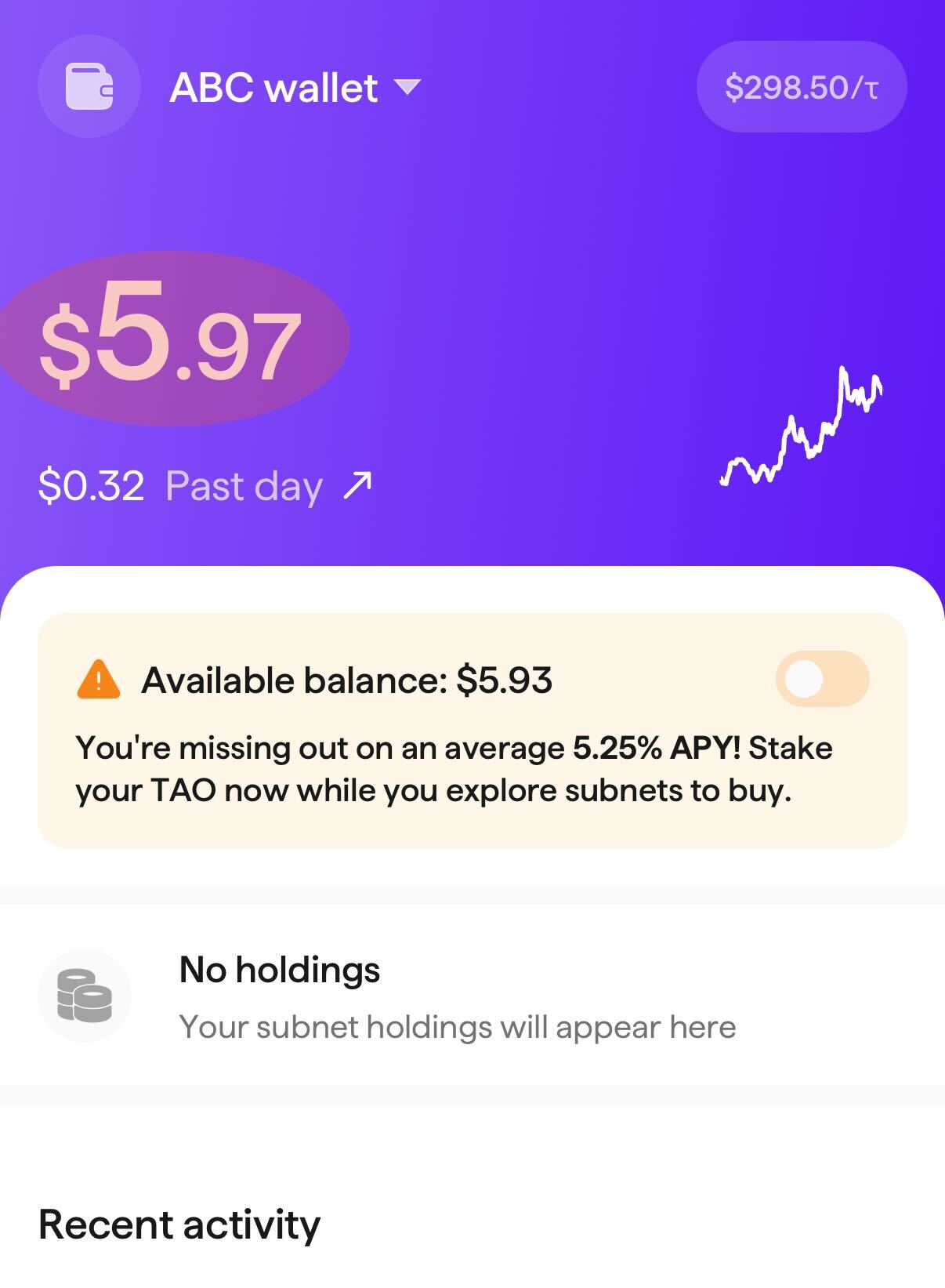
### Change Between TAO and USD for your Balance
Tap the USD value of the your portfolio (underneath your wallet name) in the wallet screen. The value will change to display in TAO. Tap the TAO value to change back to a USD balance view.
{% endstep %}
{% endstepper %}
## View Portfolio Chart
{% stepper %}
{% step %}
### Open the App or Tap the Wallet Icon
The wallet icon is located on the left side of the bottom navigation bar.
{% endstep %}
{% step %}
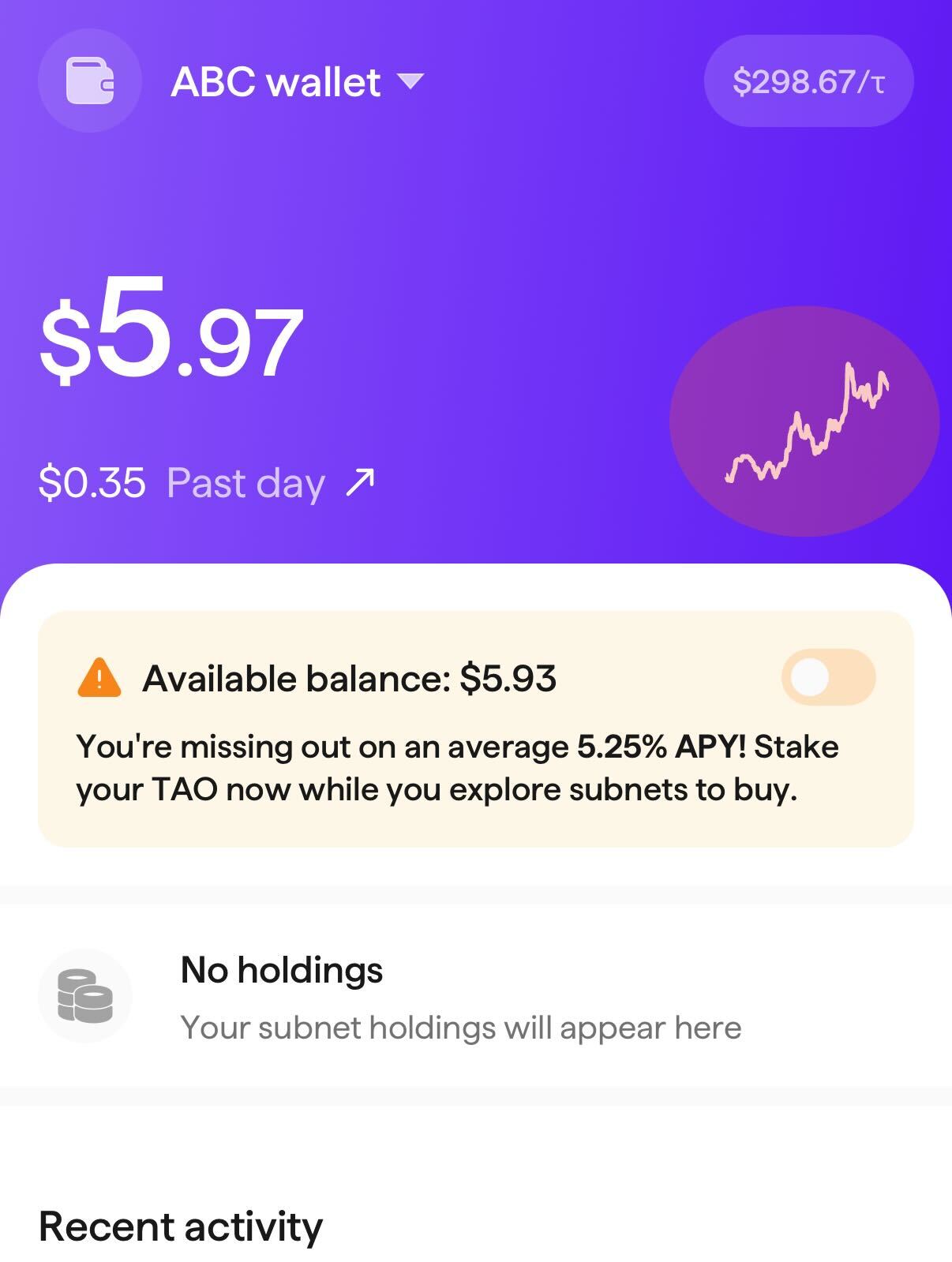
### View your Portfolio's Chart
Tap the chart outline on the right side of the wallet screen to open your portfolio's chart
{% endstep %}
{% step %}
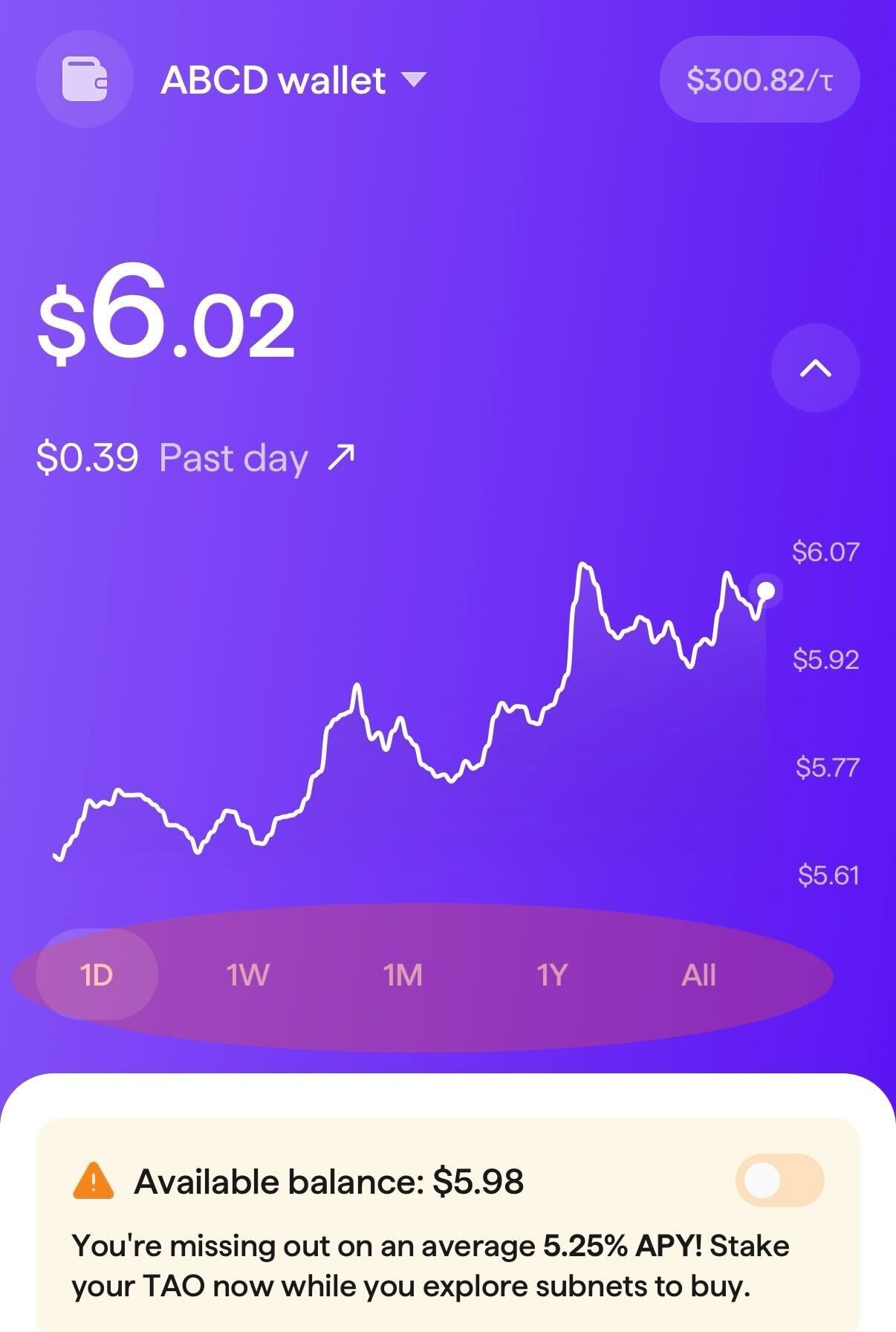
### Toggle Between Time Periods
Once in the chart view, you have the option to view your portfolio's performance by 1 day, 1 week, 1 month, 1 year, and all time. You can also slide your finger across the chart to view data points for a specific day/time.
{% endstep %}
{% endstepper %}